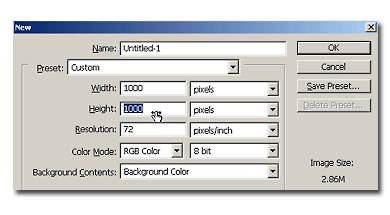
Make a new document, 1000x1000 pixels, white background.
Be sure to have your foreground color black and background color white. Press "D" key to set them like this (default settings).

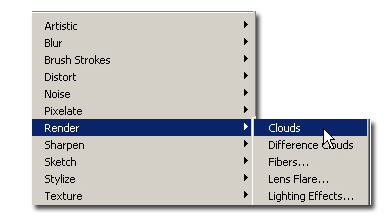
Now go to Filters>Render>Clouds.
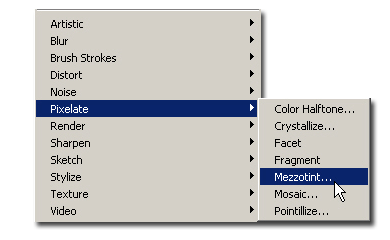
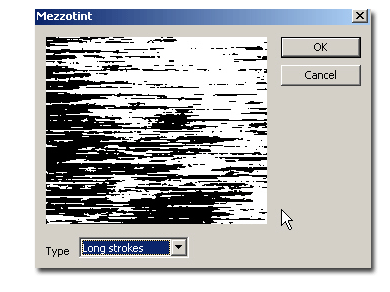
Now apply the Mezzotint filter to this layer (filter > pixelate >mezzotint). Set the filter to Long Stroke mode and apply.
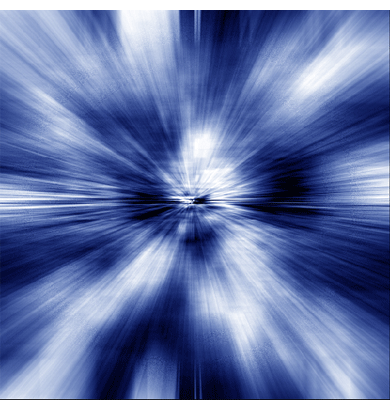
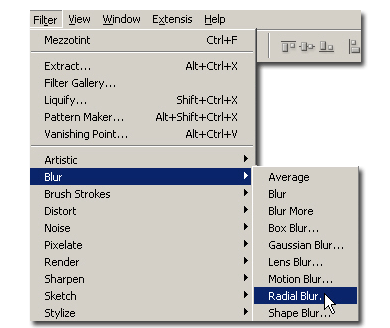
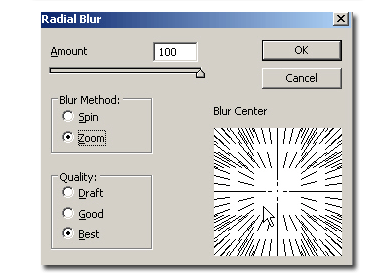
Now apply the radial blur (filters > blur > radial blur) with the following settings. Set "Blur method" to Zoom and "Quality" to Best, also set the "Amount" to 100. Now you have the lightspeed effect.
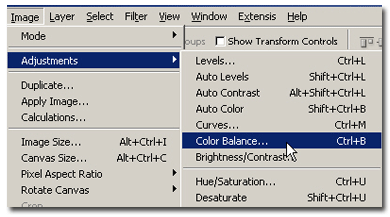
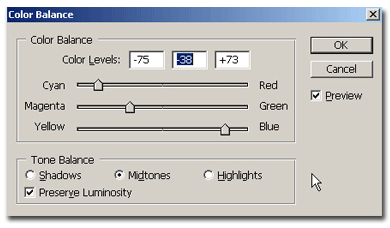
Let's colorize it a little. To change the colours go to Image > Adjustments > Color balance and adjust the colour balance like in the example. Again, these values are variable, so feel free to play and experiment.