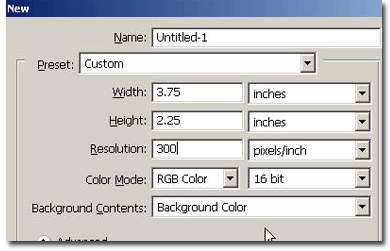
Make a new document, let's say 800x800 pixels and fill it with black.
Write a large text with white. I've chosen "Electric" with impact font, size 120 pts.
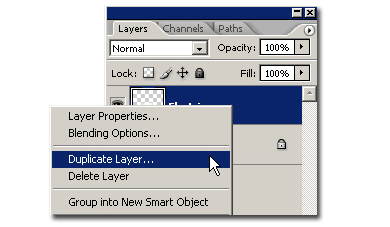
Go to Layer > Rasterize > Type to the layer with the text on it. Right click on the rasterized layer and choose "duplicate layer" and hit OK. Then, hide it by clicking on the eye next to it. Don't worry, we will need it later.
Right click on the "Electric" layer and choose "merge visible".
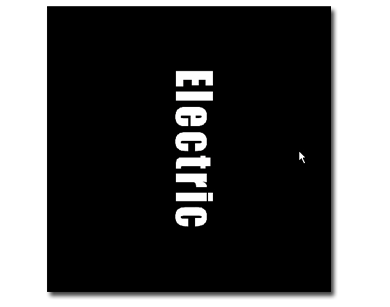
Go Image>Rotate Canvas> 90 CW. Your image should look like this:
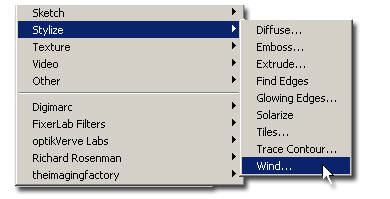
Go to Filters>Stylize>Wind. Choose "wind" and "from the right". Press CTRL+F (Command+F on Mac) another 2 times to repeat the filter. After that, go again to Filters>Stylize>Wind and repeat the procedure, but this time with "from the left" option. Again, with 2 times CTRL+F.
Go Image>Rotate Canvas> 90 CCW. Your image should look like this:
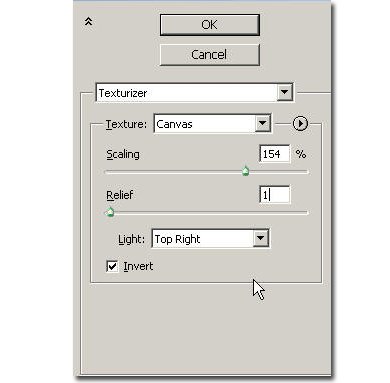
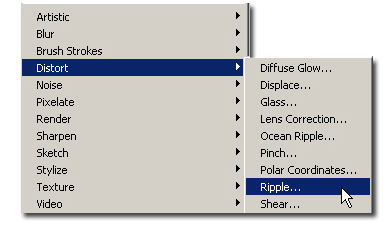
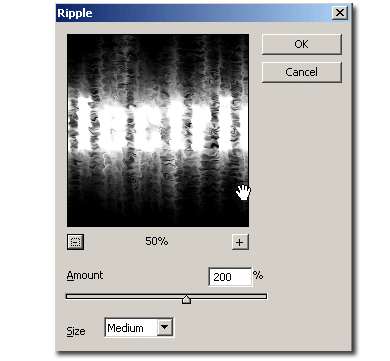
Go again to Filters>Stylize>Wind and repeat the procedure, from the right and from the left, but with only one Ctrl+F each. Go to Filters>Distort>Ripple. Select the amount desired. I've chosen Amount 200% and Size "medium".
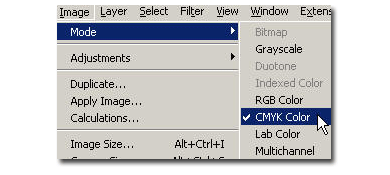
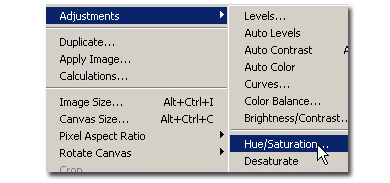
Go to mage>Adjustments> Hue/Saturation or hit CTRL+U (Command+U on Macintosh).
In the menu that will appear, choose "colorize" and move the "Hue" slider until you reach your desired color.
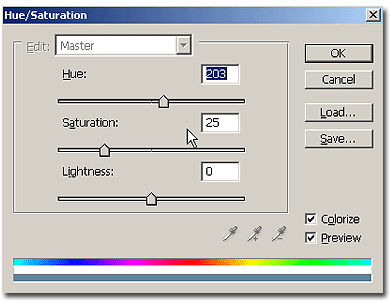
Your image should look like this:
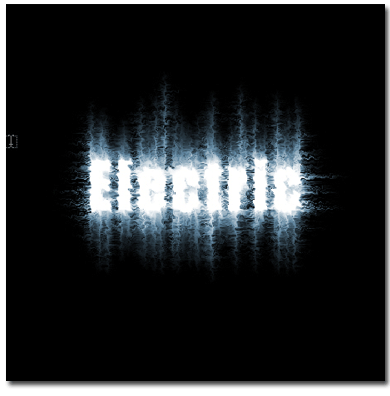
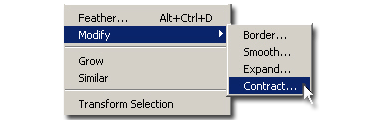
Now, with the CTRL key (Command key on Macintosh) pressed, click on the thumbnail next to the "Electric copy" layer. You'll notice the selection appeared. With the selection activated, go to Select>Modify>Contract and choose 4 pixels. Hit OK.
Now go to Edit>Fill and in the menu choose Foreground (or background color, whatever is black) than hit OK. Your final image should look like this: