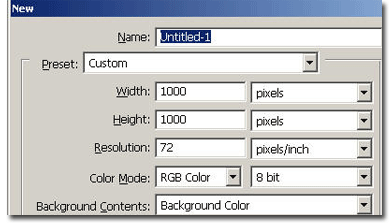
Make a new document, 1000x1000 pixels, white background.
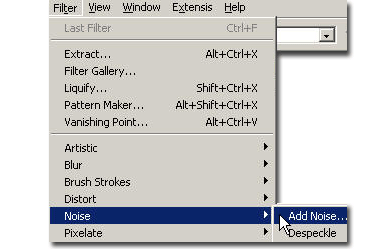
Go to Filter > Noise > Add Noise and give a 56% noise, Gaussian monochromatic.
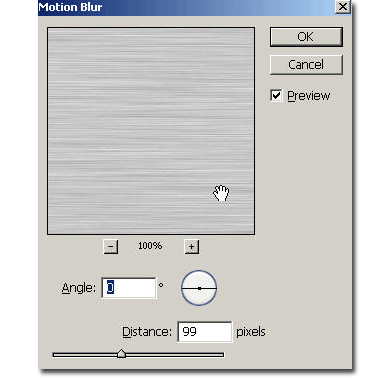
Now go to Filter > Blur > Motion blur and apply a motion bur with these values: angle: 0, distance 100 pixels.
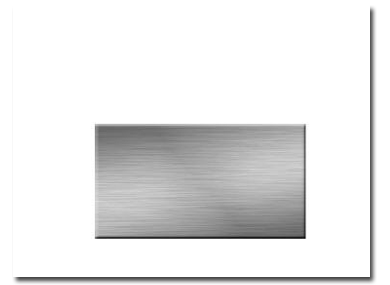
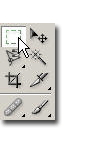
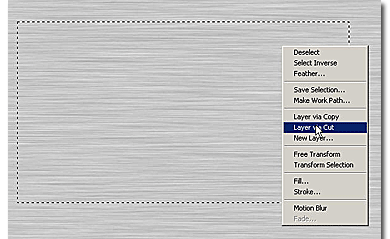
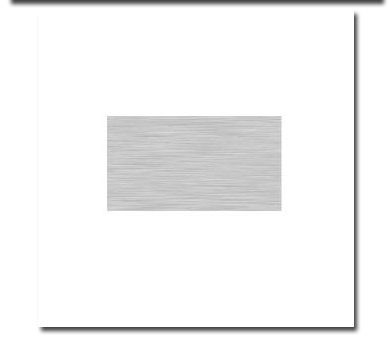
Now take the rectangular marquee tool and make a rectangular selection. Now right click on your selection and choose "Layer via cut". Notice that a new layer will be created above your original layer. Now delete the big metal layer and replace it with a white one.
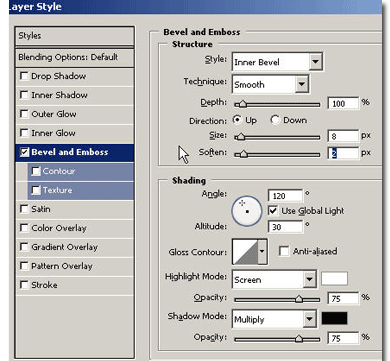
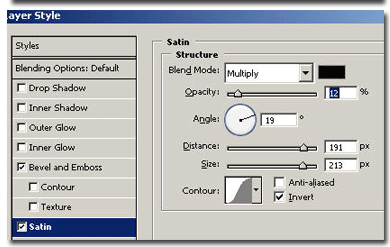
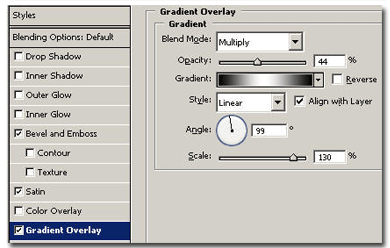
Now double click on the newly created layer to enter the layer options. Now let's create this style with these settings I show you:
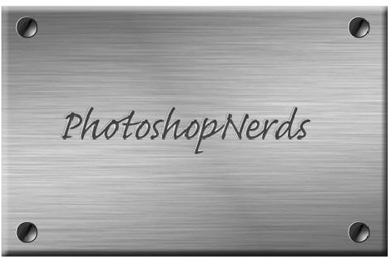
Now you're done: