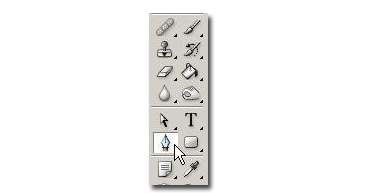
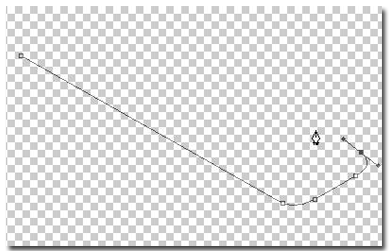
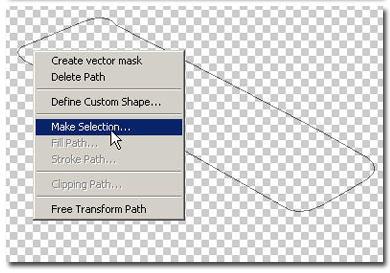
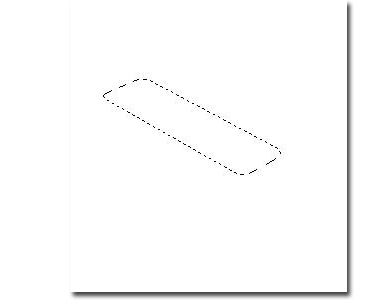
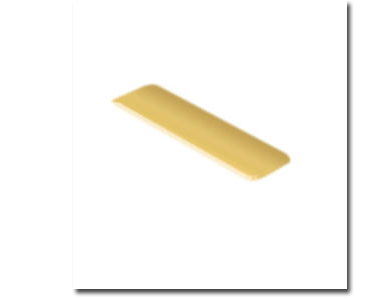
Take the pen tool and create a shape that will be the top of the ingot. After you finished drawing, right click on it and choose "make selection". Here is mine
Take the paint bucket tool and fill the selection with a yellow brown color. I used #c8ad60
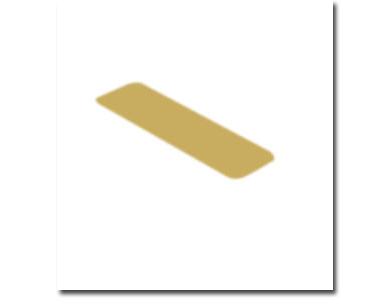
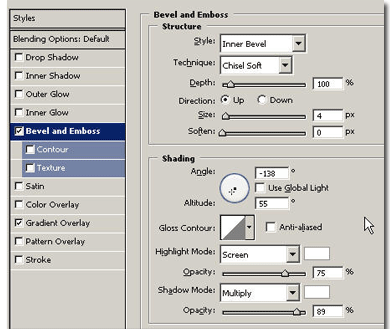
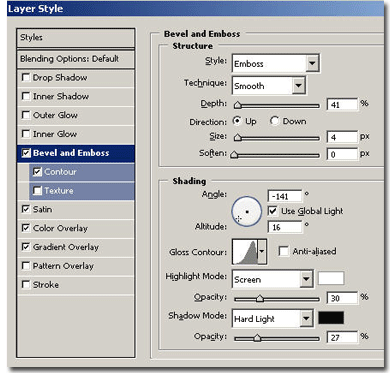
Now use the settings bellow to give the top of the gold ingot a gold look. Here is the result.
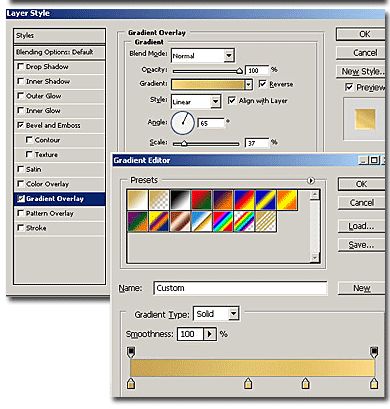
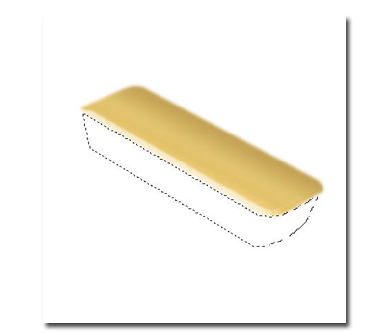
Now using the pen tool again, like in the first step, make the body of the ingot and transform the shape into a selection. Should look like this:
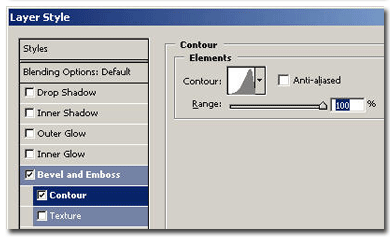
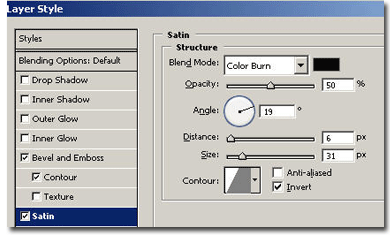
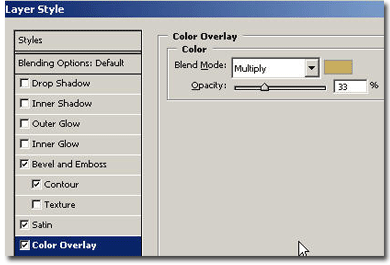
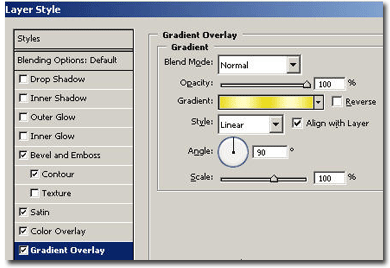
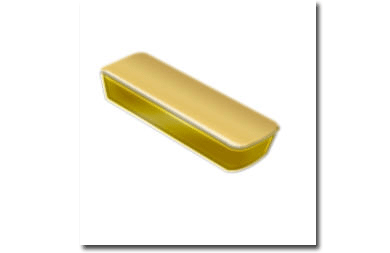
Now let's apply a gold style Remember that this style we will make is relative to your image size. Play with values as I did or see my examples:
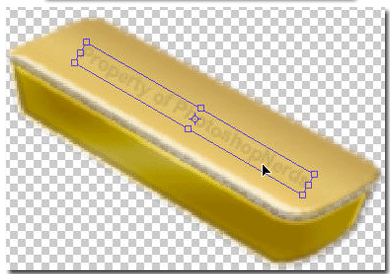
Now let's add the text. Write whatever you want, then hit CTRL+T to enter free transform mode. Rotate the text and apply a skew to it to make it the same direction as the gold ingot. Put the layer on overlay mode. Do the same with any signs you like to add on the ingot.
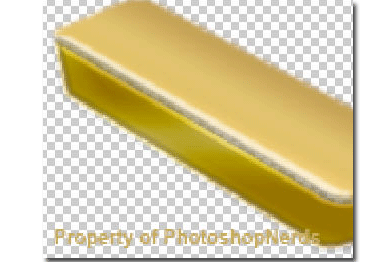
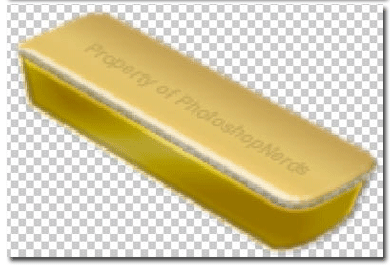
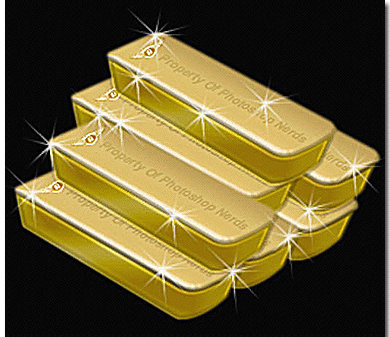
Now take a brush and select from the brushes presets "asorted brushes". Select "starburst small" and on a new layer start to paint small stars with white on the ingots. You're done: