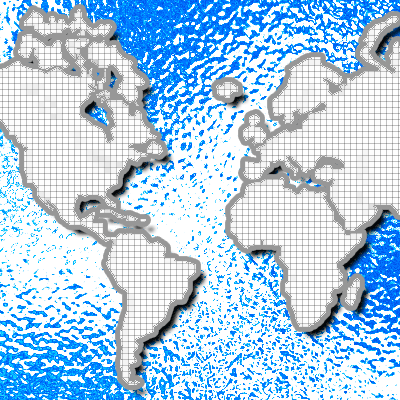
Trendy World Map Make a rippling wave around effect around a nice rendering the continents.
1. Open a new document.
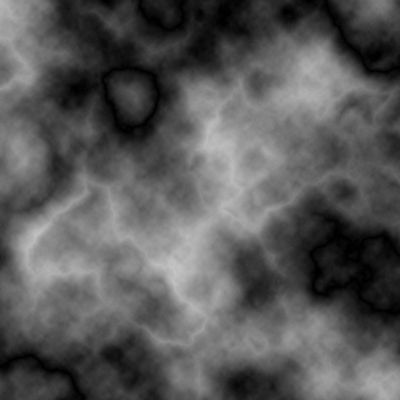
2. Create a new layer.Go to Filter > Render > Difference Clouds. Keep pressing Control + F until you find something you like.
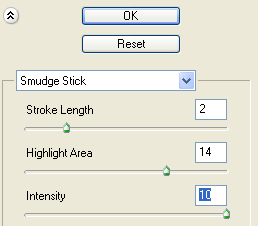
3. Go to Filter > Artistic > Smudge Stick. Use the settings below.
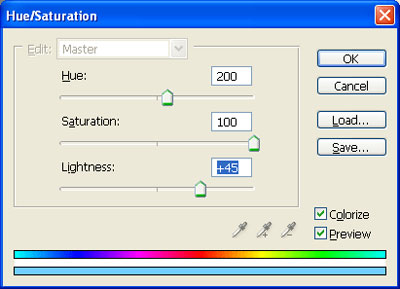
4. Change the hue / saturation by going to Image > Adjustments > Hue / Saturation or pressing Ctrl + U. Use the settings below. Be sure to press colorize. You can select any hue you want, as that just changes the color.
5. My image now looks like this.
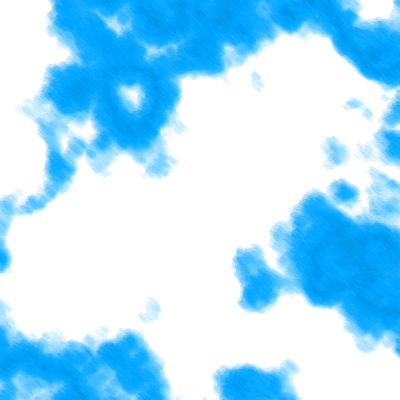
6. Duplicate the layer and change the blending mode of the top layer to "Color Burn". Should look like this now.
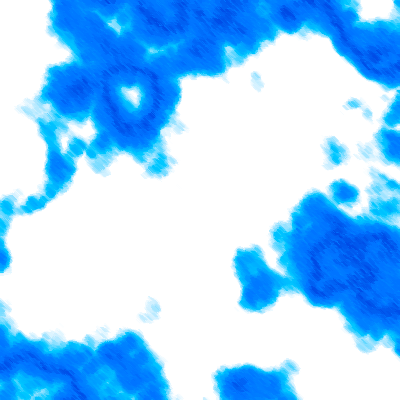
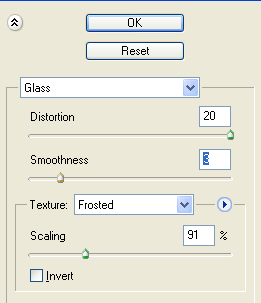
7. Merge these two layers by pressing Control + E or go to Layer > Merge Down. 8. Now go to Filter > Distort > Glass and use these settings.
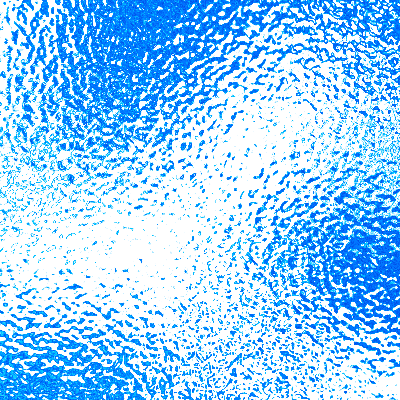
9. Mine Looks like this.
7. Now find a selection of the world, I used the one below.

Click the image for a full-size view. 8. Find a selection close to 400 x 400 that you can copy and paste into your own document. Once you have this selection Cut it out of that image and paste it onto the PSD you are working on. Here's what mine looks like now.
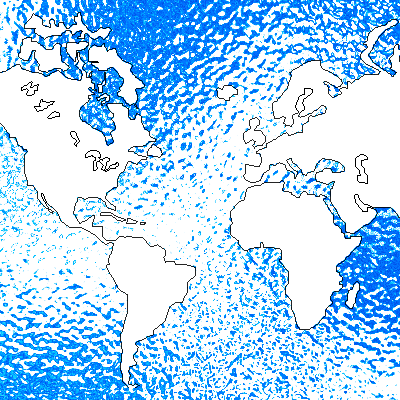
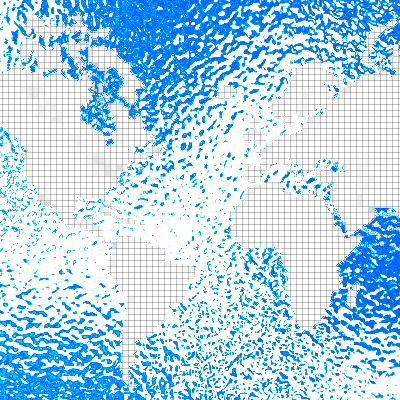
9. Go to Filter > Texture > Patchwork and use Square Size: 1 and Relief: 0. Look below for resulting look.
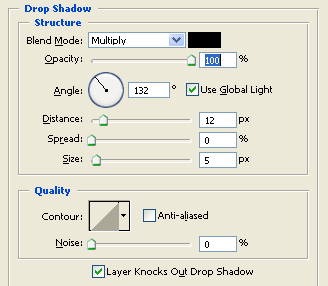
10. Now add these effects to the blending options for a finalized look. Drop Shadow
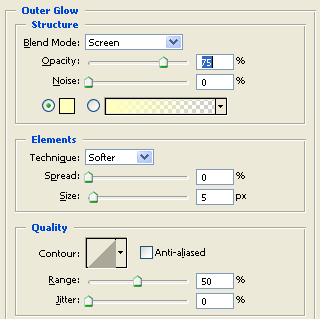
Outer Glow
Stroke
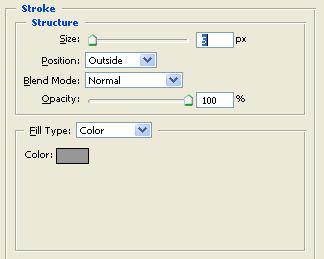
11. The final product is below.