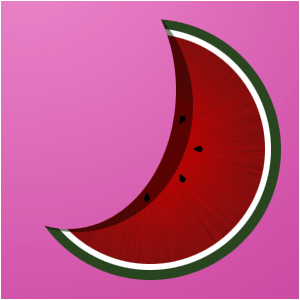
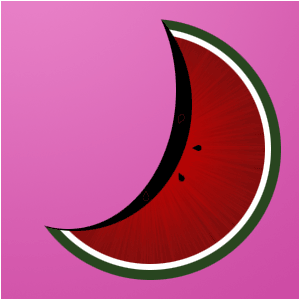
This technique was used to create the logo of KiwiDesigns.nl. Now I'm gonna teach you how to get those vectorised melons!
Step 1
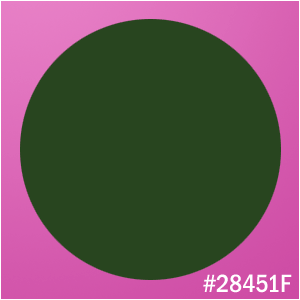
Create a green circle in a new document with the color #28451F
NOTE: hold Shift while selection a circle to make it perfectly round...
Step 2
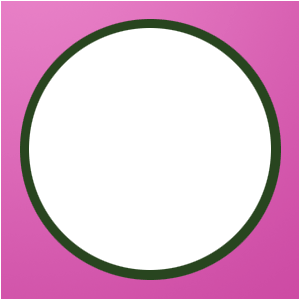
Create a smaller circle on a new layer in the green circle with the color WHITE
Step 3
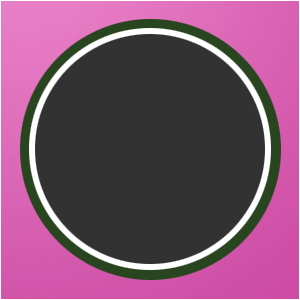
Then, on a new layer, create an even smaller circle with a random color
Step 4
Select the layer and then create a radial gradient on a new layer with the colors #C60000 and #811010
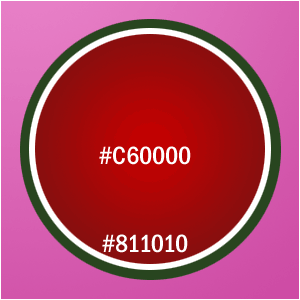
Step 5
Create a new layer and fill it with black

Step 6
Go to Filter>Noise>Add Noise and set it to the max
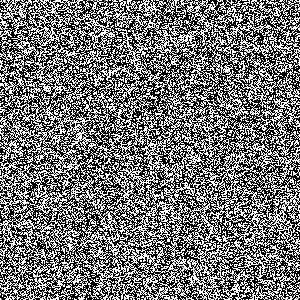
Step 7
Go to Filter>Blur>Radial Blur and make it look like mine
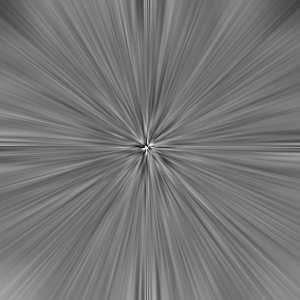
Step 8
Press CTRL+G and set it to multiply
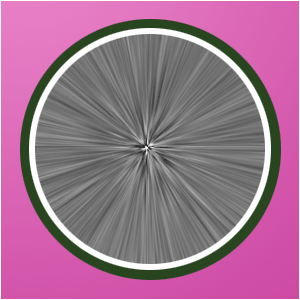
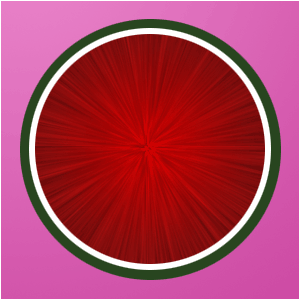
Step 9
Lower the opacity a little bit
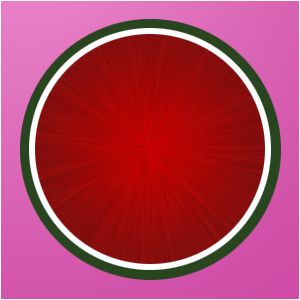
Step 10
On a new layer create a black orb in the middle
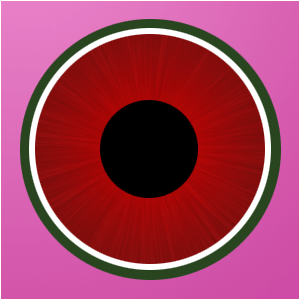
Step 11
Then select it and select the blur-layer and go to Edit>Feather and choose 20px
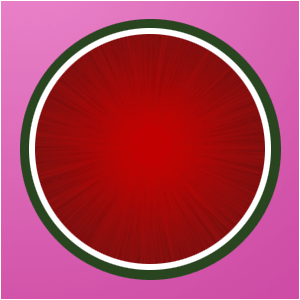
Step 12
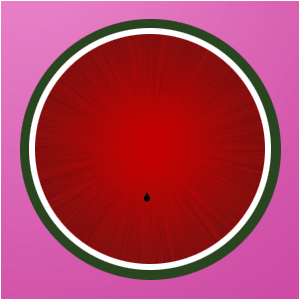
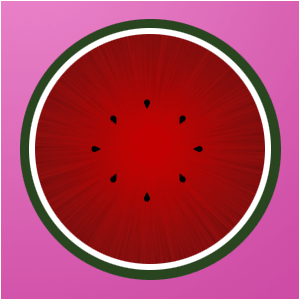
Use the standard photoshop-waterdrop shape to make the seeds
Step 13
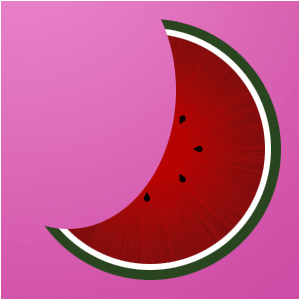
Cut a round shape out of it
Step 14
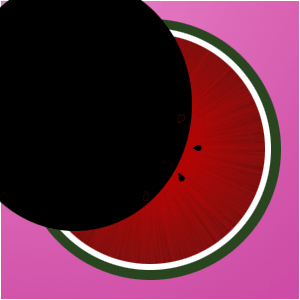
Then add some blackness to the melon by creating a black circle and press CTRL+G to group it!
Step 15
Then lower the opacity and your melon is done!