
Start by creating a leaf ornament shape using custom shape tool.
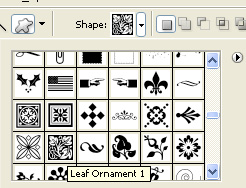

Select the shape area using rectangular marquee tool.
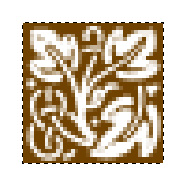
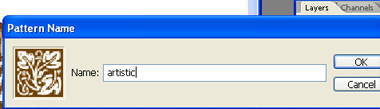
From edit menu select define pattern. i named this pattern "artistic".
Fill the background layer with a nice radial gradient.

Type the text in a new layer with a font, bold enough to let the patter show from within.

Double click the layer to open layer style window. Apply pattern overlay. From pattern fly out select the pattern "artistic" u created in previous steps.
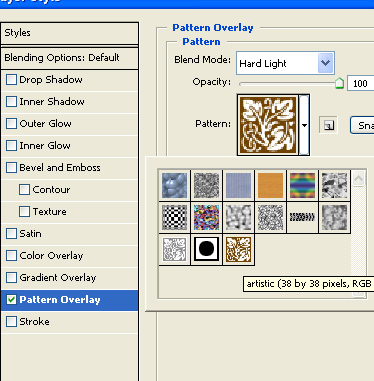
Apply other layer styles with settings shown.
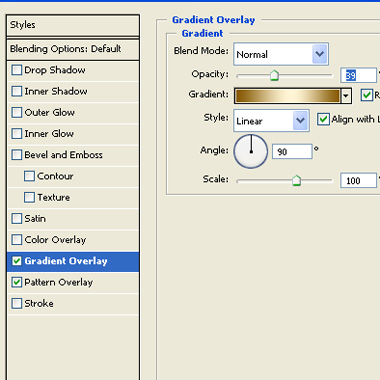
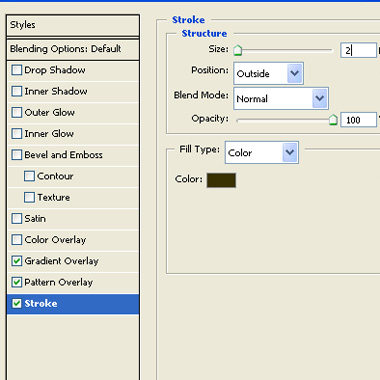
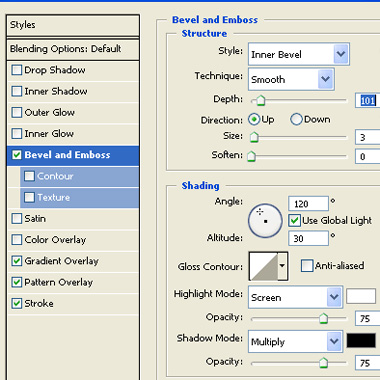
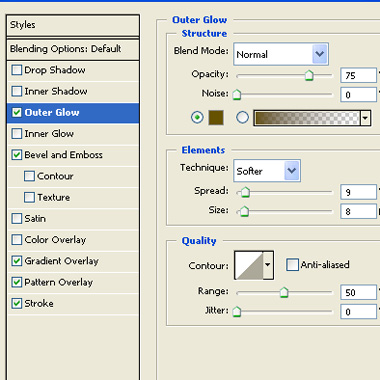
The text will look like this after applying above layer styles.

Use same custom shape that was used to create pattern and draw to fill the background with just one block of the shape.

Change layer mode of this layer to overlay.

In a new layer draw a circle using elliptical shape tool.

Copy layer style from text and paste on this circle layer.

Rasterize the layer. Ctrl+Click to get the selection. Contract the selection by 5 pixels. Press Ctrl+Alt+D to feather the selection. I used 20 pixels setting. press delete to remove the inner area of the circle.

It's optional but you can use eraser tool with a soft brush setting to remove some hard lines of the circle below the text.
