1. Select Brush tools and then right click on the background and select Spatter 14 pixels
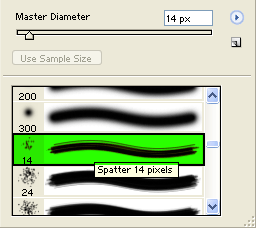
2. Then draw something on the brush.

3. Go to Filter > Artistic and select Sponge an then do the next step.
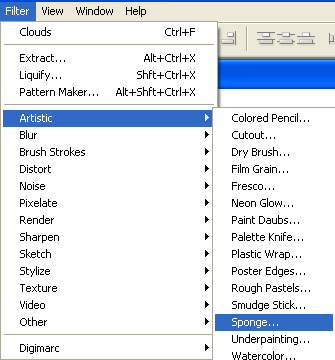
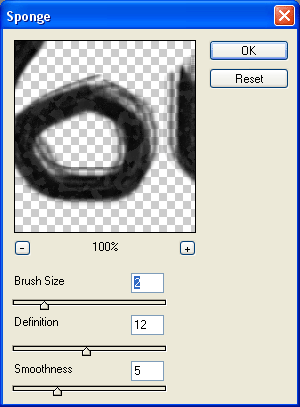
4. Now do the below changes in the sponge.
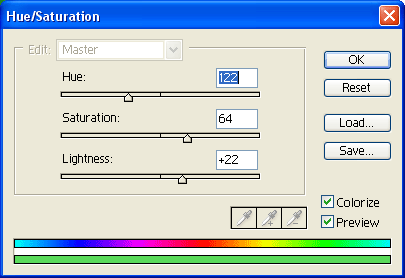
5. Then go to Image > Adjustment and select Hue/Saturation.
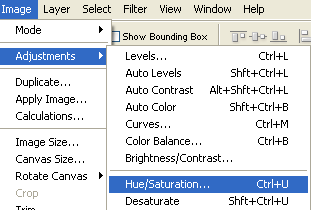
6. Now do the below changes in the Hue/Saturation in the below options:
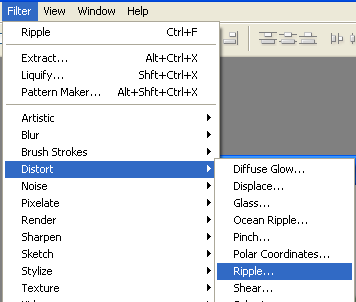
7. Go to Filter > Distort and select Ripple and then do the next step.
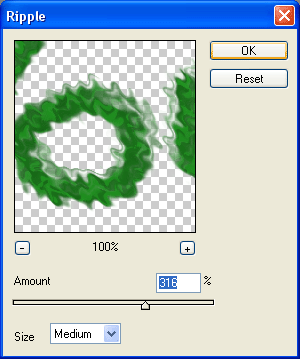
8. Now do the below changes in the ripple in the below options:
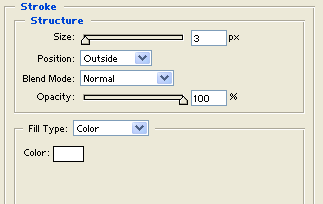
9. Now select Stroke in Blending options and do the below changes.
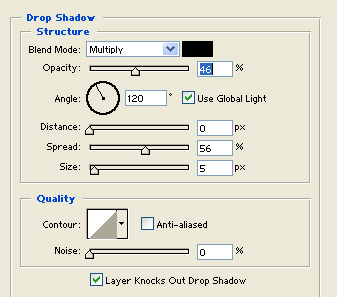
10. Now select Drop Shadow in Blending options and do the below changes.
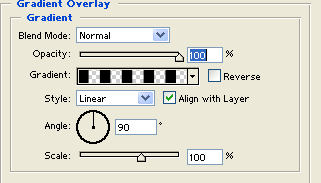
11. Now select Gradient Overlay in Blending options and do the below changes.
12. At last you are finished! Enjoy it.