

Here's how to make a 3D text effect like my new avatar. I'm using a 400x400, RGB, Transparent image.
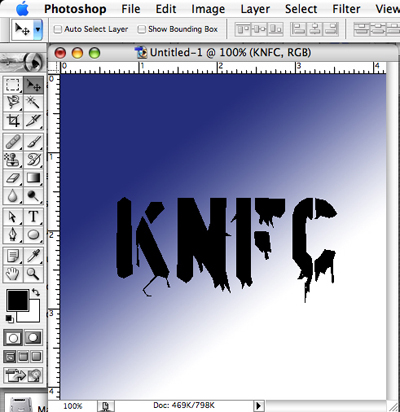
1. Make a background and add some black text. Try not to make the text have too many grungy things sticking out away from the text, or else those will be 3D as well and it will look weird.
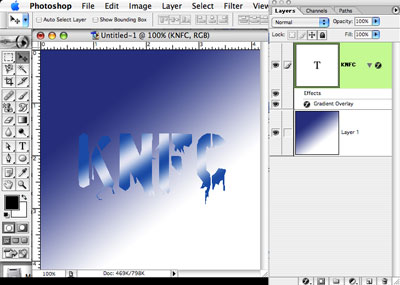
2. You can mess around with effects for your text, but don't use any outer effects like stroke, outer glow, and drop shadow.
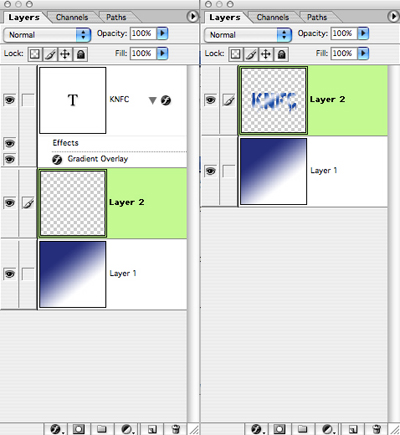
3. Create a new layer underneath your text layer, then merge them together. (Control+E on PC, Command+E on Mac)
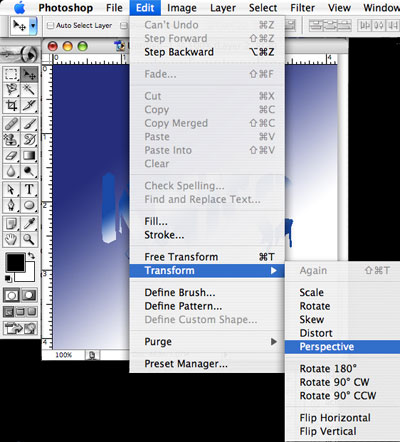
4. Transform the perspective of the text layer to something around -0.4, -18.5, 0.0.
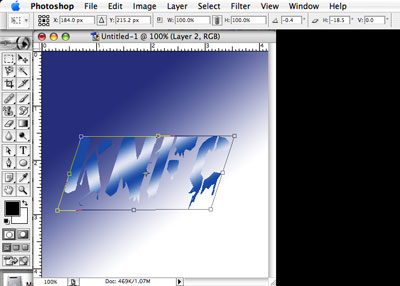
5. Duplicate the transformed layer, get the move tool (
 ) and press up on the keyboard until there is a fair amount of distance between them.
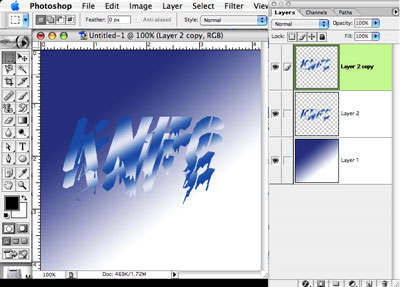
6. Select the lower layer, go to Render>Lighting Effects, and make sure that it looks a bit shadowed.
7. Here comes the keyboard-smashing part!! Press Control+J (Command+J on a Mac) when selecting the lower layer, grab the move tool, and press up once. Do this until it looks like the two pieces of text are connected! When they are all connected, press Control+E (Command+E on Mac) until you have your original layers that you started out with.
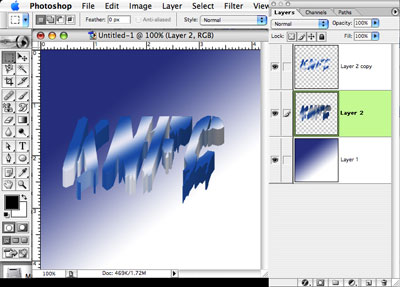
8. Now you can fool around with it as much as you want. Add a drop shadow, change the hue+saturation... whatever.
That's it.
