

Good morning. My slaves... I mean, students. Today, I'm going to teach you how to make your own brushes.
Step 1: reset your brushes, so the default ones are the only one there.
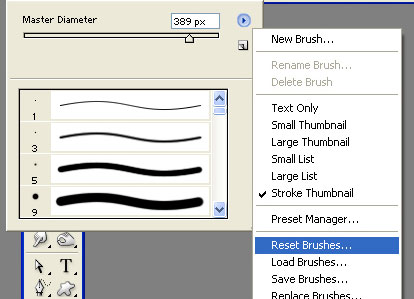
Step 2: choose a brush, anyone you like, just don't select one that's too boring and plain. I choose this one:
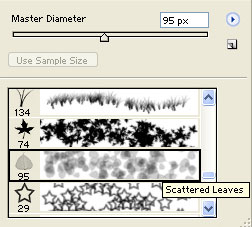
Step 3: press the 'edit brush' button, I'm just calling it that because what it's really named. Many people have problems finding that button, so I'll add a screenshot.

Step 4: after you've pressed the button, you'll see a lot of choice. But the ones we're gonna use are 'shape dynamics', 'scattering' and texture.
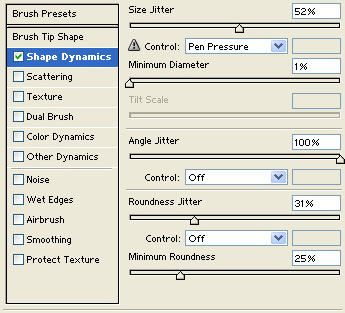
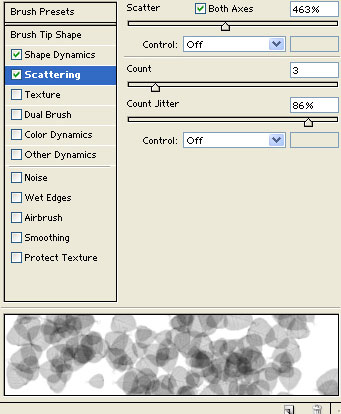
Here are the setting I'm gonna use for each one:
Shape dynamics:
Scattering:
Texture:
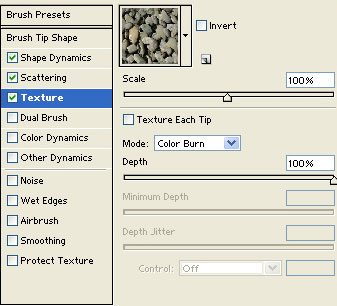
The texture i used is called 'rock patterns', to get it, got to Edit > Preset manager > Patterns > Load > Rock patterns.
Step 5: now go back to the brush palette, right clock on the brush you've edited and press 'new brush'. Now call it whatever you like, like this:
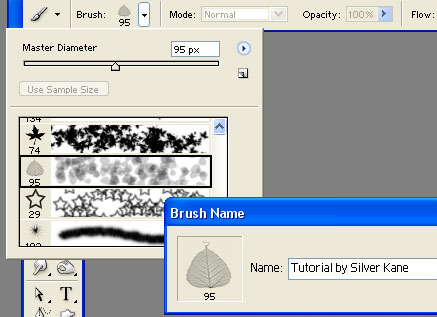
And press 'ok'. Go to the bottom of you brush palette, the brush should be there.
And you are done!! You know how to make your own brushes, congratulations!
