

Ok it is expected that you have at least prior knowledge of where the brush tool is and how to select different brushes. You also need to have at least one brush pack installed. If you don't have this knowledge head over to my Installing Brushes tutorial.
Ok, create a new pallet, I used 400x150 but any size will do. Then load a brush pack, I used the Cryngsouls Abstract Pack #1. Hit D to make you colors are at default. First create e new layer (Ctrl + N). Now select one of the brushes.
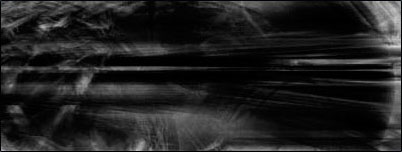
Duplicate the layer (Ctrl + J). Now press X to switch the foreground and background colors (this will give you white). Again use different brushes and put them onto your pallet.
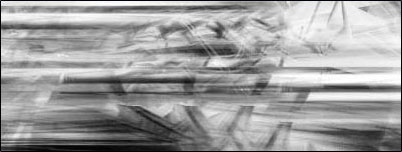
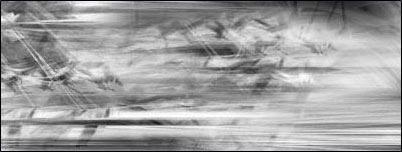
Now fiddle with the opacity of each layer and change the blend options to either lighten or overlay and you should get something like this:
I hope you enjoyed this tutorial and learnt something from it.
