


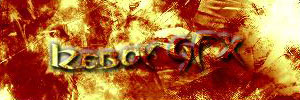
1. Start of with your image, I used this
2. Use this button

and draw your lines to your border (do it in a new layer)
3. Do your border. This is what I got
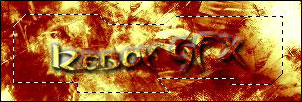
4. Right click inside the border and choose Stroke.
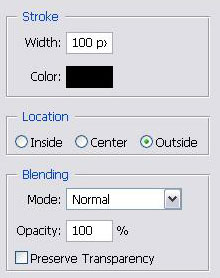
5. Use these settings
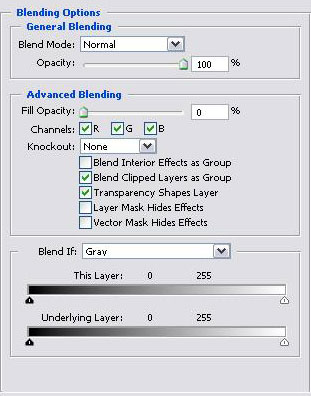
6. Now, double click the border layer and play around. I used this settings for mine:
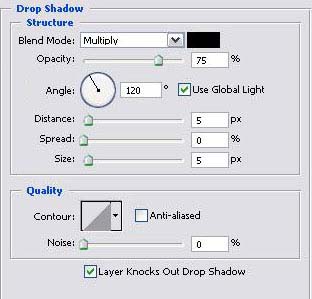
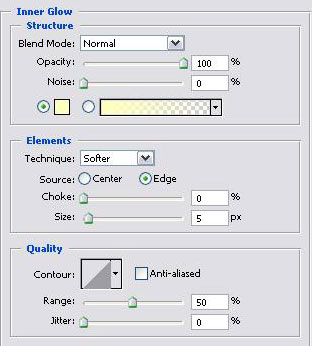
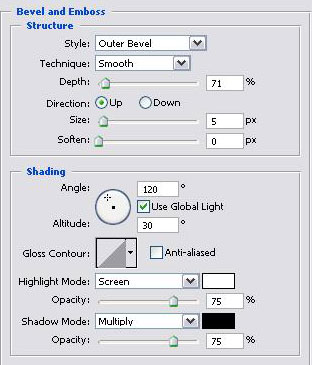
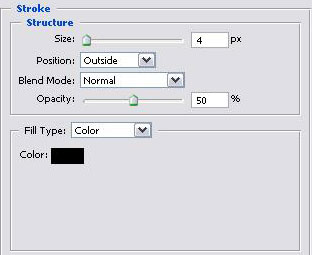
This is now its gonna look after you done it:

And now, your done.
