This tutorial will teach and show you how to make a signature in easy steps.
Step 1
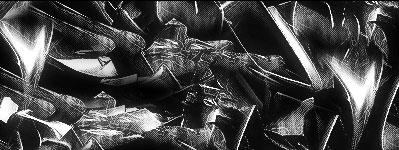
Start off with a blank document (400 x 150 px) and fill it with black. Now take out your brushes and start brushing on top of it lightly, with white. I recommend using jashins or thasprout's brushes.
Step 2
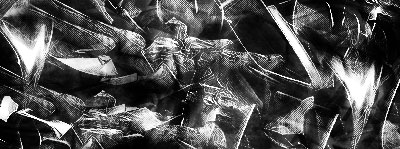
Make a new layer and fill it with black. Brush over again with white, lightly. Set the layer to overlay.
Step 3
Put your favorite render on top. Take the single column marquee tool and put it over where it has great colors. Duplicate the render and press Ctrl+T and stretch it over the sig. Place the pixel-strech and put it above the background layer and set it to overlay. Lower the opacity or fill so you don't make it visible a lot.

Step 4
Duplicate the render (not the pixel-strech) 3 times. Filter > Blur > Motion blur > set to 35 the 3 renders below the main one. Repeat the process by blurring the other 2. Set the top render to overlay.

Step 5
Now we are going to add special effects. Take the pencil tool, make a new layer, and draw a straight line. Repeat process by making another one above the lower one. The two layers with white lines. Filter . Blur > Motion blur > set to 35 same with the other one. Add text in between white lines.

Step 6
Now the second special effect, grid/scanlines effect. Take out the rectangular marquee tool, go to the background layer, and make a gray rectangle behind the render. Lower the opacity so its hardly visible. While still selected, Edit > Fill > and select the grid pattern. (If you don't have it make one). Lower the opacity so its hardly visible just a little. You can brush a little on the render to make it look grungy.

Step 7
Now finish it off with a border and voila you are finished with your sig!! There could be more special effects and other stuff to add which I'll make tutorial on.