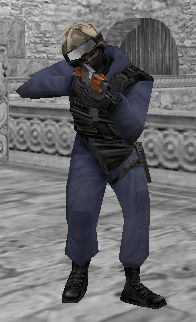
If you've ever seen the movie "Pleasantville", you will undoubtably have noticed that parts of the screen are in black and white, and parts of the screen are in color. This was a very cool effect, and in this tutorial I will show you how to make it in just three steps. Unlike other tutorials, this method is non-destructive, which means you can just delete the layer and the edits will be restored. Also, if you erase too much you can "un-erase" since we will be using layer masks as opposed to the Eraser tool.
Step 1
Grab your source image and duplicate the background layer. You should now have only two layers. If the image you want to apply the effect to has more then one layer, create a new layer (CTRL + SHIFT + N) and move it to the top. Then, go to "Image -> Apply Image" and hit OK.
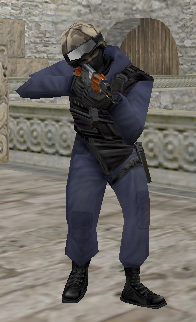
I will be using this image.
Step 2
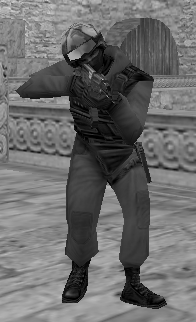
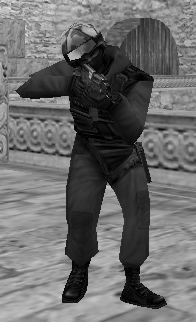
Make the picture black and white by either hitting "CTRL + SHIFT + U" or going to "Image -> Gradient Map" and using the Black and White gradient. This is how the different techniques turned up.
Desaturation:
Gradient Map:
Step 3
Add a layer mask by going to "Layer -> Add Layer Mask -> Reveal All".
This should now show up. The WHITE BOX is the layer mask.
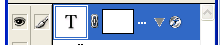
You can now brush on the layer mask using BLACK to remove the black and white, or brush on the layer mask using WHITE to add back to the black and white, if you accidentally removed too much. Simply brush with black on what you would like to be colorful.
This is my final result, with both of the techniques.
Desaturation:
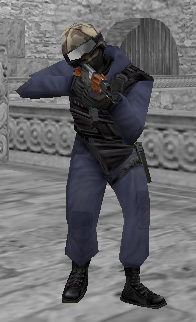
Gradient Map: