

Often times when designing, I find that it is sometimes the simplest techniques that provide my creations with the best visuals. Two of the most important attributes of any art form, color and texture, can sometimes be overlooked when designing in Adobe Photoshop. By putting more thought into these areas, we can create truly stunning effects in Adobe Photoshop! In this tutorial, learn how to take advantage of Color and Texture to create a Grunge Effect that will leave its viewers in awe of an almost "antique" style. Dont rely on simple grunge presets! Take it to the next level and make your work something amazing!
Step 1 - Choosing the Color for your Design
In Adobe Photoshop, create a new document (I will use 300x300). Begin by selecting a medium-light foreground color, such as a mustard yellow used in our example. If you would like to follow along, I used the Color #EFCF03.

Step 2
Select the Paint Bucket Tool (
 ) from your tool bar in Photoshop. Fill your canvas with the color you selected in step 1.
Step 3 - Selecting a secondary color for your design
We are now ready to select a secondary color for our design. Think of a color that will contrast well with your primary color, or one that will stick out well over your background color. Black is an excellent color to use over yellow, so I will be using the color 000000. Select this color as your foreground color.

Step 4
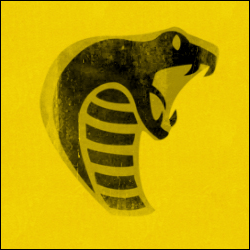
This part of the tutorial will require some creativity of your own. Create a new layer in Photoshop above your background color layer. Now, using your new color you selected in step 3, design something in your new layer (such as a logo, piece of text, drawing, or rasterized vector graphic). I will be using the GreyCobra Logo, which can be found in our Free Adobe Photoshop Brushes Downloads Database if you would like to use it as well.

Our document is very plain, and our design seems to be lacking something. At first, it may be hard to put a finger on it, but as you study the canvas, you may realize that there is no texture! With texture comes detailed lighting effects, and gives the design more feel to it (even though we know that the design is flat). The next Page will show you how to add texture to your image and finish the antique grunge effect.
Step 5 - Adding texture
Duplicate your background layer, and go to Blending Options for it. In Pattern Overlay, make the following changes:
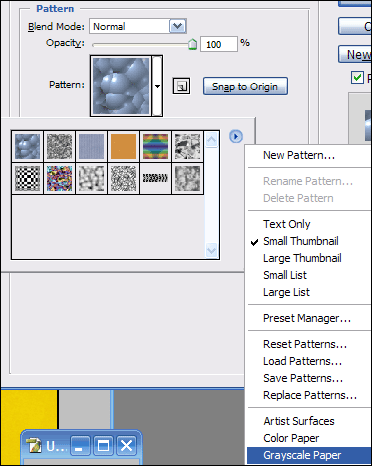
Click the drop down arrow to the right of the default pattern selected, then click on the arrow to the right of the pattern selections available. In the menu that appears, select the Grayscale Paper pattern presets, and click Append.
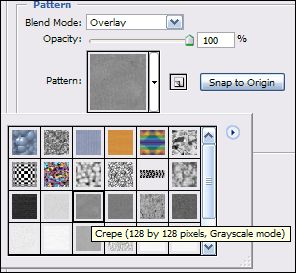
From the newly imported patterns, select the Crepe pattern. Set this pattern's Blending Mode to Overlay.

Step 6 - Final Touches on our design
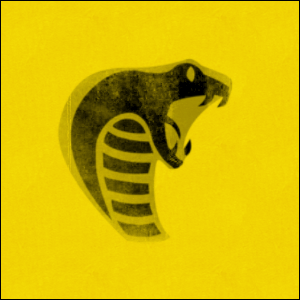
Now that our canvas has more of a believable surface, we can move onto any final touches in our document. Because we are trying to accomplish the effect of a worn out antique look, I am going to erase parts of my design I created in black. To do this, I will be using some Grunge Brushes. If you do not have any grunge brushes available, you may download some free Grunge Brushes from our Downloads page. Select the Eraser Tool in Adobe Photoshop (
 ), and then pick a grunge brush from your brushes panel. Begin erasing only small parts of your design in your document to give it a faded out appearance (especially near the edges).
Final Thoughts
You can continue to work with your design, and add onto this effect. As you can see, there is a huge difference from what we started with, and what we ended with, even though we changed very little using Adobe Photoshop:
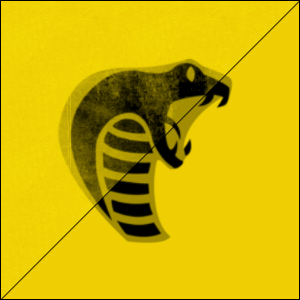
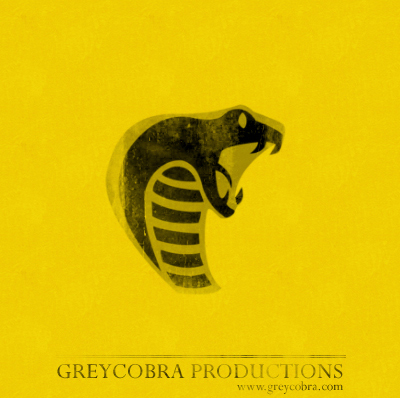
Simply by adding some more texture with the eraser tool and default patterns in blending options, we have created an incredible effect. Here is another example of this effect in a digital art piece.
Good Luck!
