Create a rounded rectangle using rounded rectangular shape tool.

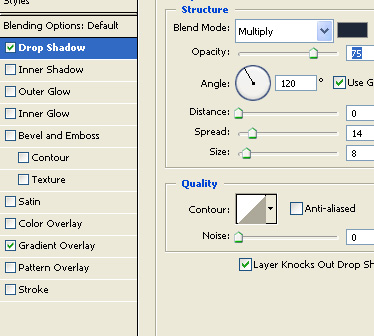
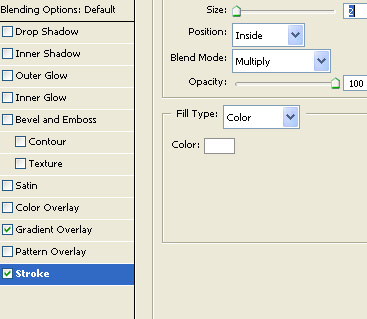
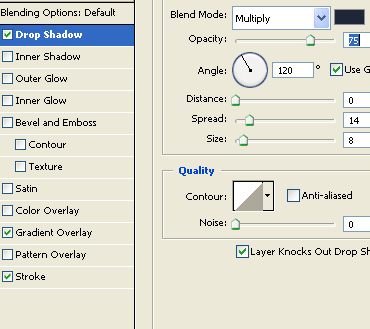
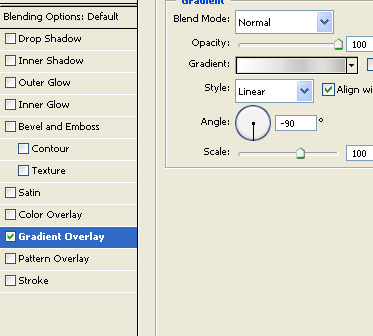
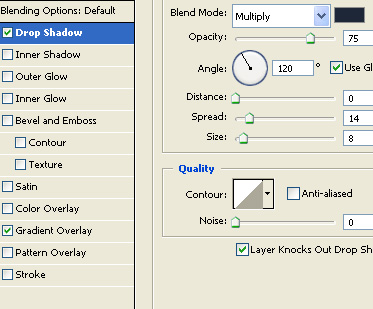
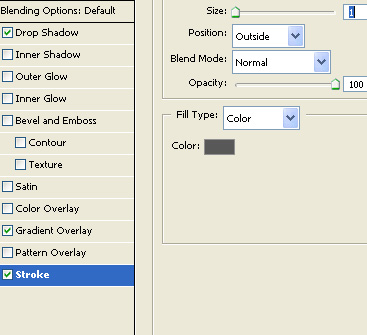
Double click the layer to open layer style window. Apply layer style with the settings shown.

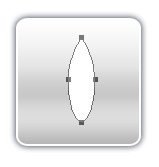
Create a vertical ellipse using elliptical shape tool.

Select the ellipse using direct selection tool. Using convert point tool click on the top node. Duplicate the layer.
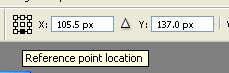
Change the anchor point of the layer to the bottom by clicking the bottom of reference point location icon.
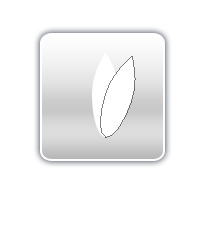
Rotate it.
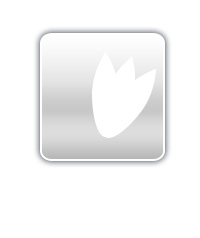
Similarly create another duplicate with the same rotation.
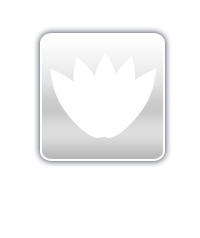
Select both petals. Duplicate. Press Ctrl+T. Right click the layer and select flip horizontal.
Select one of the petals. Double click the layer to open layer style window. Apply layer style with the settings shown.
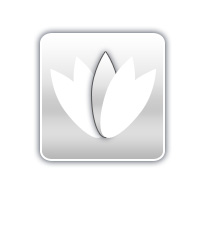
Right click the layer and select copy layer style. Select all the lotus layers. Right click the layer and select paste layer style. Move the layer order of the petals to match the image below.

Type company name etc. using a nice font.