

Create a rain water drop effect much like the ones that you see on windshields of cards when driving through the rain.
1.Creating this effect is actually quite simple to do, and does not take a very long time to accomplish. First, open the document that you would like to add this effect to in Adobe Photoshop:
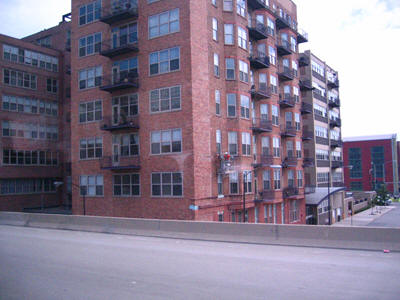
Once opened, select the brush tool from your tool bar in Photoshop (
 ), and select black as your foreground color:

2. Now we need to make a few changes to your brush to make it appear like water droplets. In the top right of Adobe Photoshop, their are a few tabs, such as Brushes, Tool Presets, and Layer Comps. Select the brushes tab, and set up your brush as follows:
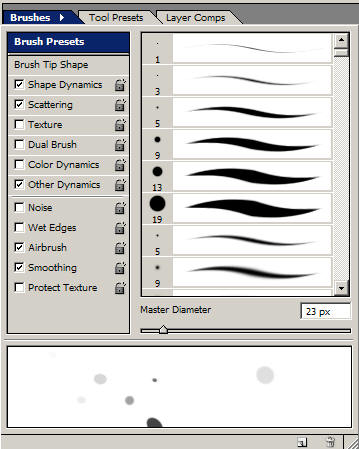
First begin with a small hard brush (like the 19px brush shown above in the right, and then change the master diameter to 23 px.
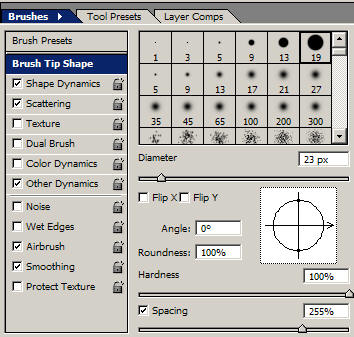
Under Brush tip shape, change the spacing to around 250%
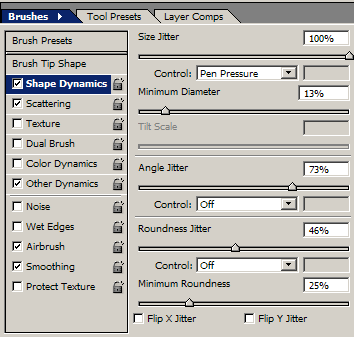
Shape Dynamic Settings
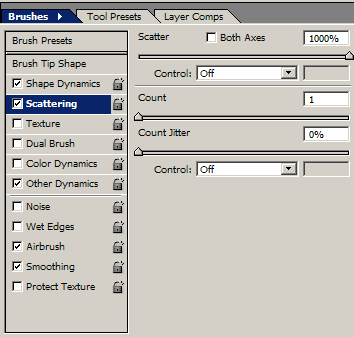
Scattering Settings
3. Your brush should now be configured correctly for this effect. If you think you may be reusing this effect sometime, you may want to save your brush now, because that is probably the longest part of this tutorial. Now that your brush is ready, create a new layer on your document, and start brushing over your image in the new layer:
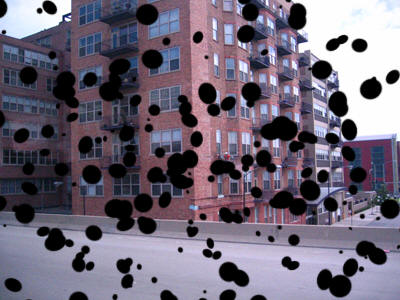
4. Doesn't look like much yet, we still need to change some blending options. Right click this layer, and go to blending options:
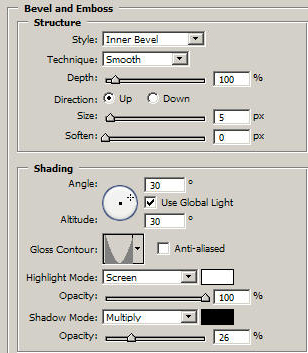
Add a Bevel and Emboss to your layer. Notice that we have changed the gloss contour in the bottom of this blending effect to Cone - Inverted. We have also increased the highlight and decreased the shadow.
5. Apply this blending option. Your image should now look like this:
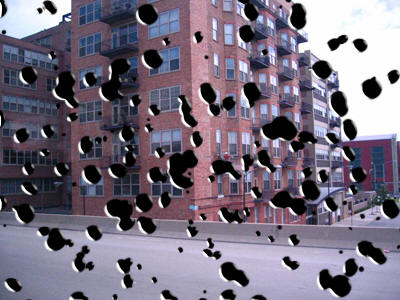
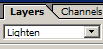
6. Almost there. Now set this layers blending mode to lighten:
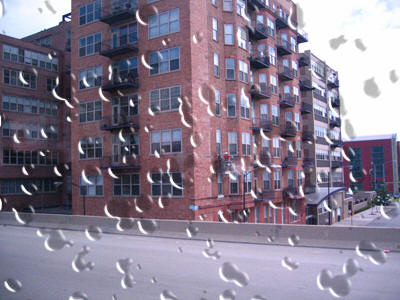
That's it! If you want to make your effect more convincing, you can use the liquify tool to manually bloat the areas behind the rain drops, however, this effect looks just fine how it is in my opinion!
Good Luck!
