

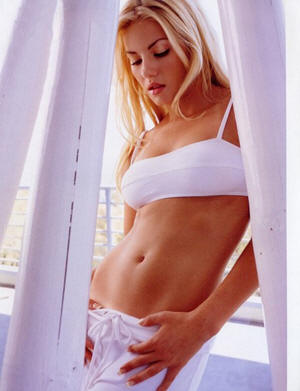
1. Start with an ordinary picture. For my tutorial, I have used this picture of Eliza Cuthbert:
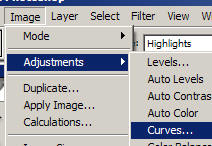
2. Now we need to adjust the curves. To do this, first open your curve editor (Image > Adjust > Curves):
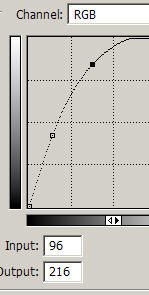
3. In the Curves Settings, Set it up like this (Drag two points into a curved line):
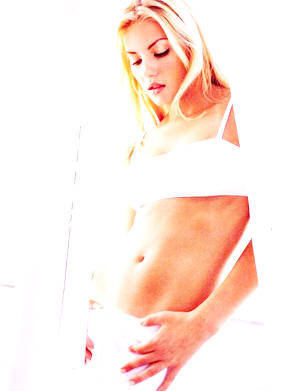
4. Our image now looks like this:
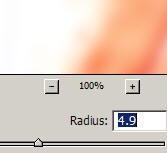
5. Now duplicate this layer (Right Click > Duplicate Layer). Apply a Gaussian blur of about 5:
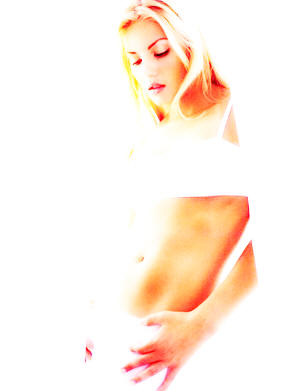
6. Set this layers blending mode to Overlay, and now your image looks like this:
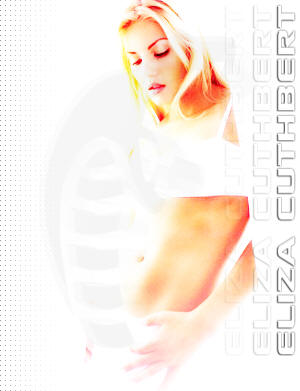
7. That's it! Keep adding onto it to make your image unique and interesting!
Good Luck!
