

1. Create a new document. I will be creating mine at 300x300, but yours may be whatever size you choose. Fill your document with a dark background color:

2. Create a rectangle selection like this, make a new layer, and fill it with a lighter shade of your background color:
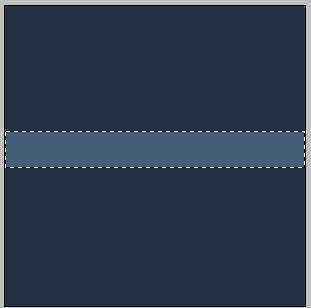
3. Copy paste this rectangle a few times to make it look like this. Merge all of these layers together (not including the background).

4. Now lets give it the tech look. Get out your polygon lasso tool:

5. Hold shift and make a selection around your rectangles. Shift will allow you to make selections at 45* angles. Close your selection by clicking where you started:
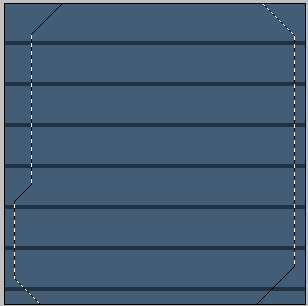
6. Inverse the selection (Selection > Inverse). This will make it select the opposite of what is currently selected. Now cut this part by clicking Ctrl+x:

7. Add a one px bevel in your blending options:
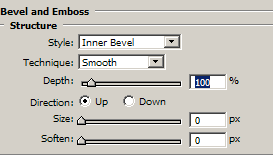
8. Create a new layer, and make another selection with your polygon lasso selection tool on the edges of your list. Fill it with a lighter color, and add another bevel to it:

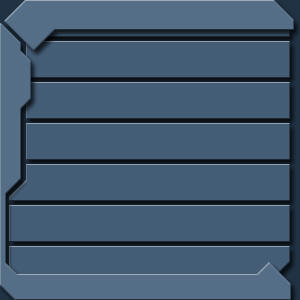
Note: I have also added a slight drop shadow for a nice effect giving it more depth.
9. Using elliptical selections, we can cut out some wholes in this interface:
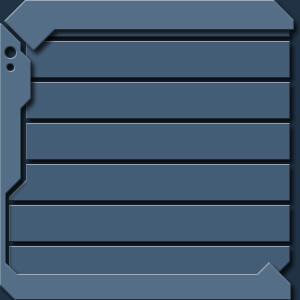
10. Now, add some text to fill it, and play around with it until you have a nice looking interface:


With overlays
