


1. Open up a psd that you would like to animate. Your psd needs two different pictures at least. One picture should be how your document starts, and the second is how it looks when finished. I will be using these two pictures:

Before Glow

After Glow
2. Make sure that your document is at the starting point (in this case, the before glow image). Open up your animation window (Window > Animation):
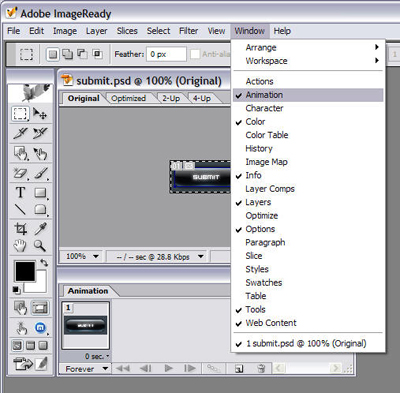
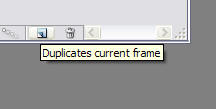
3. You should see a new toolbar pop up with your current image thumbnailed inside of it labled 1, with 0 sec below it. The one means that this is your first frame. Duplicate this frame by pressing this button in your animation window:
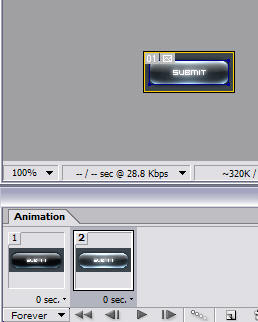
4. Now there are two frames in the animation window. Select frame 2 by clicking it. Now make the glowing layer your top layer:
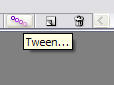
5. Now we need to make these two frames blend together. This is actually very simple. We need to make a tween. To do this, click the button with the 4 dots in a diagonal line.
6. And now enter the following values:
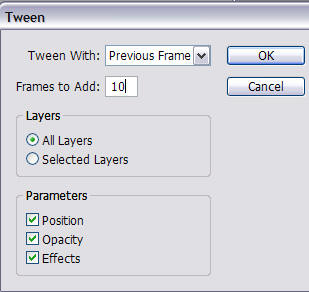
Tween With: - This is what you are animating from. In this case, we are animating frame two from the previous frame, frame 1 (Non Glow to Glow).
Frames to Add: - This decides the number of frames to be made in your animation. Generally, the more frames, the smoother, but also a larger filesize.
Layers: - This decides what layers to tween.
Paramaters: - What part of the layer are we animating
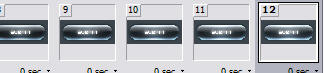
7. Now that we have the button go from a non glow to a glow, we need to make it go back to a non glow so that it appears more smooth. To do this, select all the frames in your animation (select frame 12, or your last frame, and while holding shift, select frame 1):
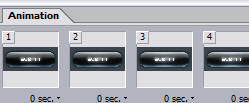
8. Now Copy all of these frames (Click the arrow pointing to the right on the animation window > Copy Frames:
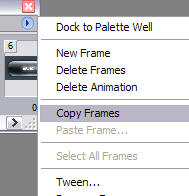
9. Now we need to paste these frames after frames 1-12 (right arrow again > Paste Frames). Enter this in the box that pops up and press ok:
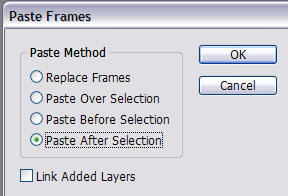
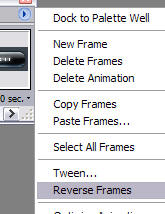
10. DO NOT UNSELECT THESE FRAMES! We still need to reverse them so it goes from a glow to a non glow. Click the arrow again, and press Reverse Frames:
11. Now you can click the play button to play your animation.
12. Go to File > Save Optimized As > and enter the name of your file. Your done!

Good Luck!
