

In this tutorial, I am going to show you how you can create an awesome 3d logo for your company, personal use, or just for fun!
1. Create a new Document (300x300).
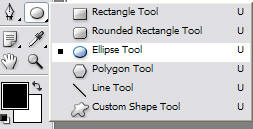
2. Select the ellipse tool:
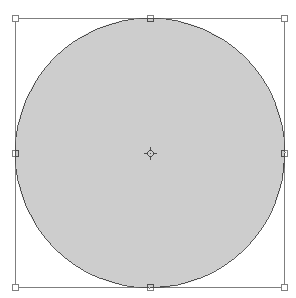
3. While holding shift on your keyboard, drag a circle near the center of your document:

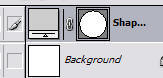
4. Select a light grey color for this shape by double clicking the color to the right of the ellipse shape in the layers panel:

5. Duplicate this layer (right click the layer and press Duplicate Layer). Now go to Edit > Transform > Scale:
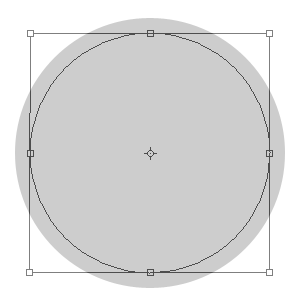
6. Hold Ctrl+Shift+Alt, and while, drag in on one of the corners until you have a small rim around the inner circle:
7. Select a Blue Color for this inner Shape:
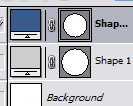
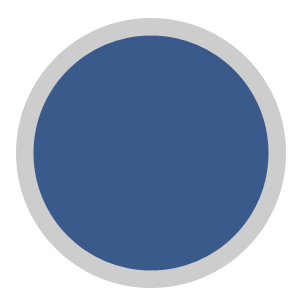
8. Rasterize both of the shape layers (Right Click Layer > Rasterize). Now Right click the grey circle layer and go to blending options.
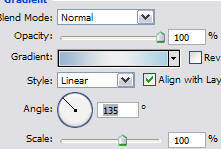
9. Go to Gradient Overlay, and set it up like this:
10. And in the Bevel:
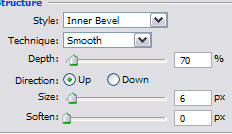
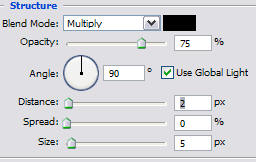
11. Click OK to apply these changes. Hold Ctrl and click the blur circle layer. Now while your grey circle layer is selected, press ctrl+x. Go back into the blending options and add a drop shadow with these settings:
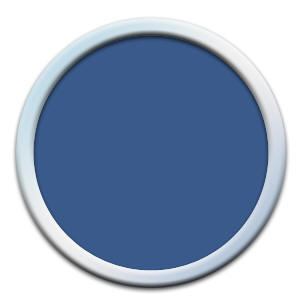
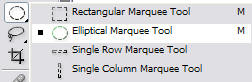
12. Select the Elliptical Marquee Tool:
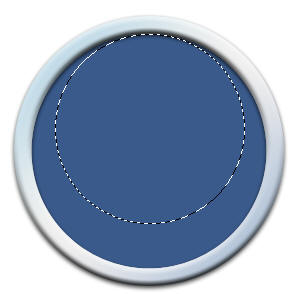
13. While Holding shift, make a selection like this in your image:
14. Select your gradient tool:
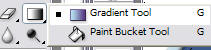
15. Choose the default gradient preset from the preset manager that goes from foreground color to transparency. Set your foreground color to white. Now fill in this selection in a new layer over all of your other layers. Be sure that when you are filling it, you are dragging a line while holding shift, and you are dragging from top of the selection to the bottom:

16. Now Select your dodge tool from your main toolbar:
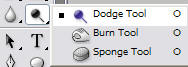
17. Set up your brush like this:

Hardness is 0%
18. Brush in a circular motion on the blue circle layer so that you get a similar effect to this:

19. Now, make your brush size 200, and click 2-3 times at the top and bottom of the blue circle layer:

20. Now, just add some text, or a picture to your logo and your done!

Good Luck!
