

1. Create a new document in Photoshop (130x60), and fill it with a dark background color:

2. Using the rounded rectangle shape tool, make a small rectangular box with a darker color:

3. Now make a glassy reflection over it. If you unsure how to do this, go take our tutorial on glassy curves.

This just gives our button a bit more depth, this is not a required step to get the glow effect.
4. Click your shape layer containing the button, and rasterize it (Layer > Rasterize > Layer).
5. Now, using a medium sized dodge brush (25px should be fine), brush along the top and bottom of your button. Try to brush a little extra on the left and right corners to give it a better glowing effect:

6. Now, select a slightly larger brush (should cover about 50% of your button, I used a 65 px brush), start dodging the bottom center and top center of your button to give it a more realistic glow effect:
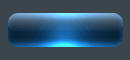
7. Finally, add some blending options, such as an outer glow, or drop shadow to your button:
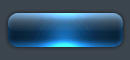
Piece of cake! All that you need now is some text and your button will look great!
Good Luck!
