

Today we will learn how to make a sleek looking button.
Step 1:
Start a new document of size 220x260. Fill it with a background colour as Black #000000.
Step 2:
Create a new layer and select the Rounded rectangle shape and draw a rectangle, like this
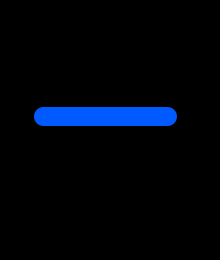
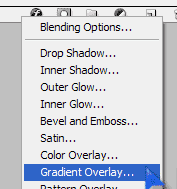
Select the layer and choose gradient overlay.
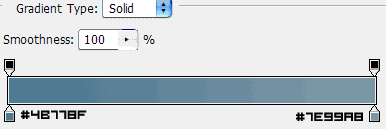
and select the following Gradient Colours.
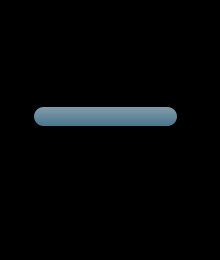
This is what I got my result as
Step 3:
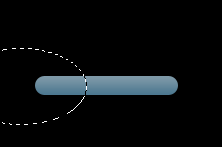
Now let us try to give some effect and text to the button to make it look more attractive. Select the Eleptical Marquee tool and draw a ellipse like this.
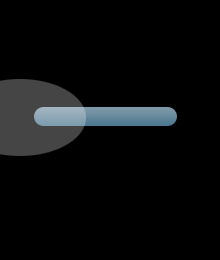
Create a new layer and fill it with white colour and reduce the opacity of the layer to 27% you should see something like this.
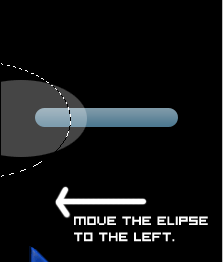
Now draw another elipse using Eleptical Marquee tool like this and move the selection to the left this will cut the top white layer.
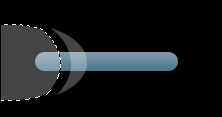
Now press the delete button and you are left with only the part in the right. Now ctrl+click on the button layer and press ctrl+shift+i to make the reverse selection and press the delete button. This is what you should get after doing it.
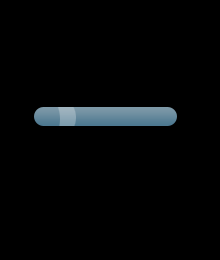
Now you can see our button is taking some shape. let us add some text and shine to make it look more sleek. You can choose a pixel font to make it look more futuristic. This is what I have got.
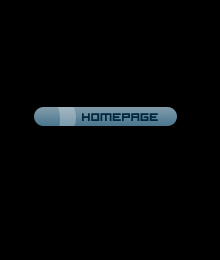
Now let us add some shine. Create a new layer above the text layer that we just created and draw a eleptical selection and use the single transparent gradient and deleted the extra part by inverse selection. You see this for the detailed instruction here . This is what I got
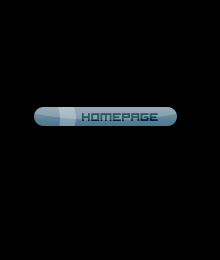
Now jsut duplicate the layer set and change the text to add more similiatr buttons. You can also experiment with different colour to give it different looks.
