Start by creating a new file. Create telephone shape using custom shape tool.

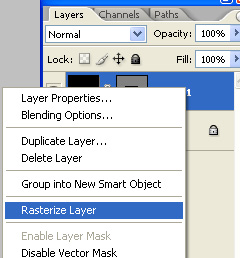
Right click the layer in layer palette and select rasterize.
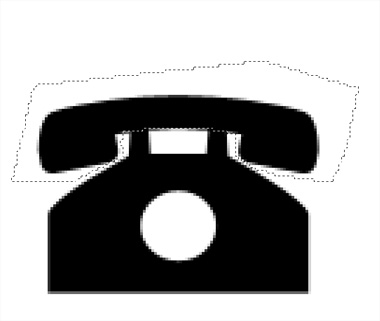
Create selection of receiver using polygon lasso tool.
Press Ctrl+Shift+J to cut paste the selection in new layer. Enable lock transparency pixels form the layer palette. Change the color of the telephone and receiver.

Duplicate both the layers. Select each layer and press Ctrl+T. Rotate the layer slightly.

Duplicate both the layers. Press Ctrl+T. Right click the layer and select flip horizontal.

Create some random lines using line tool. This will create an illusion of the buzzing phone.

Duplicate the layer and adjust the lines according to the next position of phone.

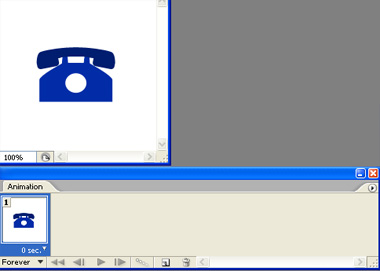
Open animation window. For the first frame keep the normal position of the telephone visible and hide rest of the layers.
Duplicate frame. Unhide the buzzing position of the phone along with the random lines.
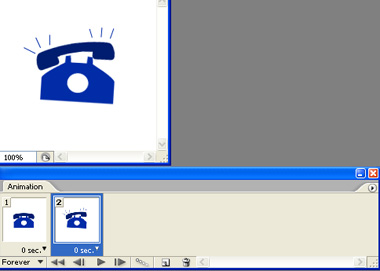
Duplicate frame. Unhide the next buzzing position of the phone along with the next layer of the random lines.
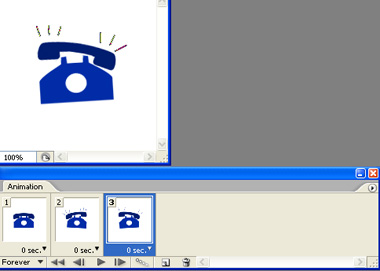
Select the three frames and duplicate them.
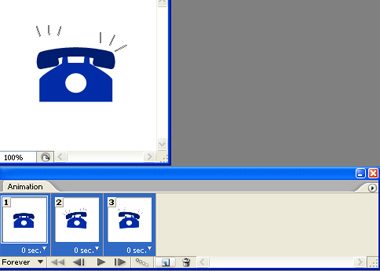
Swap the last two frames with each other.
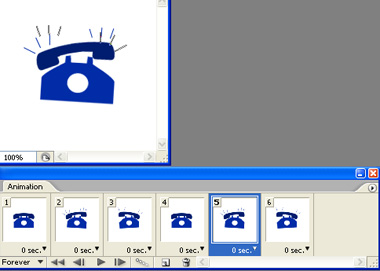
Duplicate the frame containing normal non-buzzing phone. move this frame to the end of the sequence.
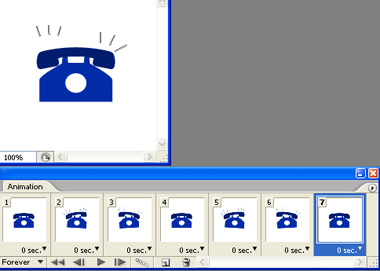
Press Ctrl+Alt+Shift+S to save an optimized animated GIF.