1. Open Photoshop. Open desired image.
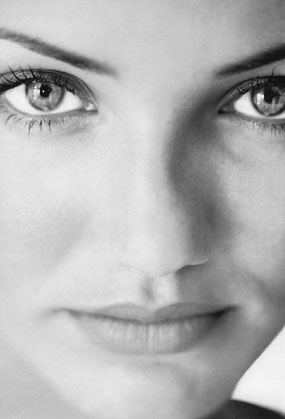
2. Use Zoom tool to zoom in the image to get the better an bigger view of an eye for selection.
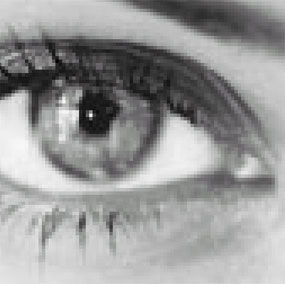
3. Select Polygonal Lasso Tool. Select Right eye.
4. Select > Save Selection > Name "r" for the selection.
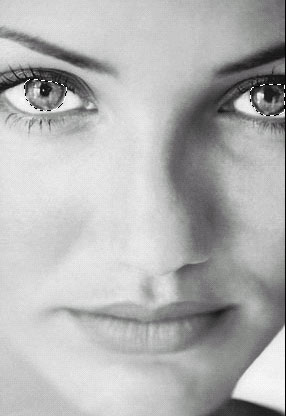
5. Using Polygonal Lasso Tool, select left eye. Keep it selected.
6. Select > Load Selection > Select "Add to Selection" button under "Operation".
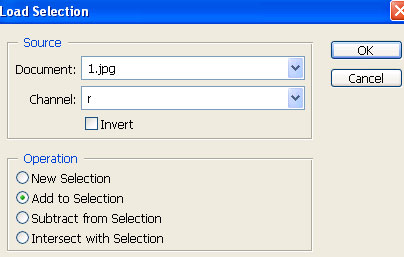
7. Select "r" from channel drop down menu to add the right eye selection.
8. Both the eyes are selected as shown below in the image.
9. Layer >New Adjustments Layer > Hue/Saturation
10. Click Ok for Hue/Saturation. This will create another layer for Hue/Saturation.
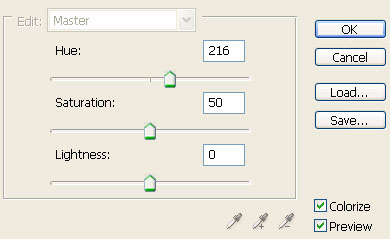
11. Try to follow above values to get following effect. you can change those values at any point of time by simply clicking the Hue/Saturation layer.