


1. Ok. Choose a background color whatever color you want (I used a simple gradient). Create a new layer and call it button. With your circular marquee tool, make a small selection (the image below is 100% size) and fill it with some light gray (#CCCCCC). Now that was step one.

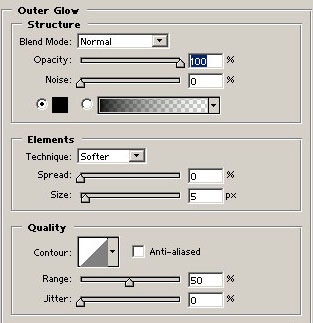
2. Now apply the outer glow settings specified below: (If you don't want a stupid outer glow effect, and you are experienced, you can use the dodge and burn tool, or you can make a slightly bigger selection than the circle and fill it with a gray-to-black gradient.)

It's gonna look like this! Makes it look like they are indent or something.
3. Now, with your burn tool (20%) make the circle dark on the sides by dragging it around and around the circle, and with your dodge tool (20%) make some light areas like on the pic below. Two light areas will give it a nice, glossy effect!

4. Now you are done! You can make the button a mouseover button, or just leave it as it is. Click here to view the result in action!

