

Sometimes the only thing that keeps a good portrait from being a great portrait is a little too much shine on the skin. Here’s a quick and easy way to tone down those highlights.

Step 1
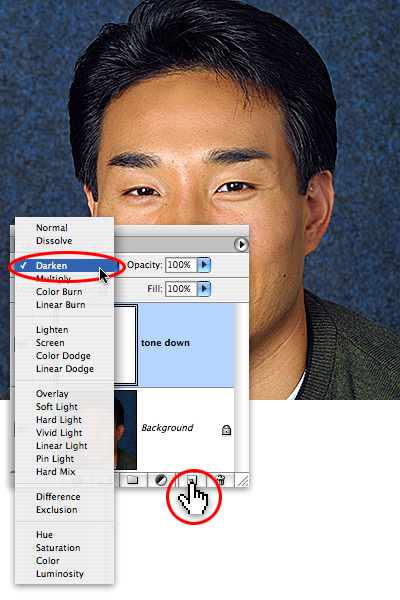
Open the image, and add a new layer by tapping on the Add layer icon at the bottom of the Layers palette. Name the layer “tone down”, and set the layer’s Blending mode to Darken.
Step 2
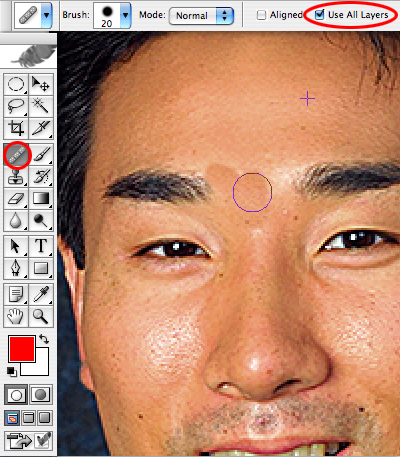
Next, select the Healing Brush tool (Photoshop CS2 users, make certain it’s the Healing brush and not the Spot Healing tool). Set the tool to Use All Layers, and then sample by holding down the option/alt key and tapping on a non-glare skin area. Let go of the option/alt key, and paint over the glare area. Since the corrections are on their own layer, you can easily correct any mistakes by erasing or layer masking.
Step 3
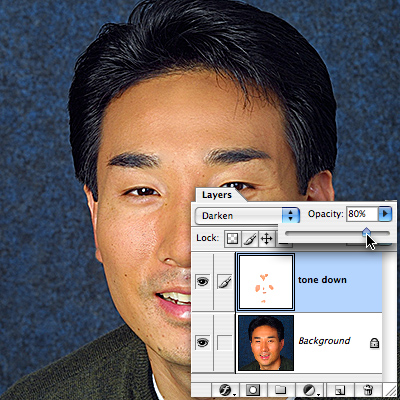
Pull the opacity of the tone down layer by sliding the opacity arrow to the left until the glare areas look perfect. Congratulations-- now even if your subjects get nervous in front of the camera, you can still make them look cool as a cucumber with Photoshop.
 Rich Harris is a designer, illustrator, and teaches classes in Photoshop and Illustrator to teenagers for Saturday Academy and to graphic design students at Mt. Hood Community. He also plays a mean jazz trumpet, and can be reached at