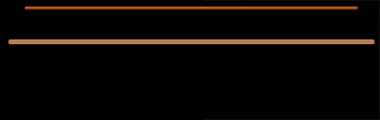
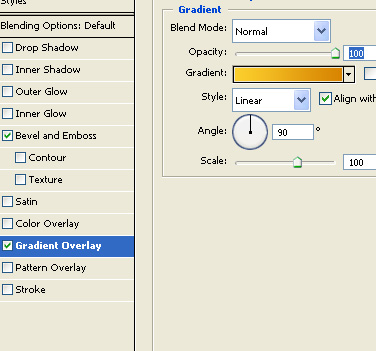
Start by creating a very thin rounded rectangle just like a slit using rounded rectangular shape tool.

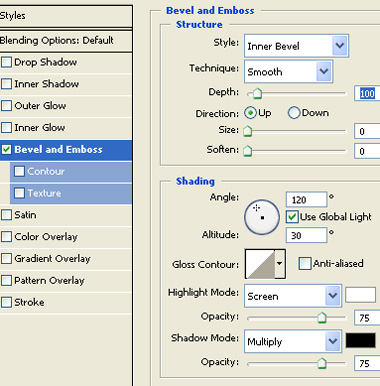
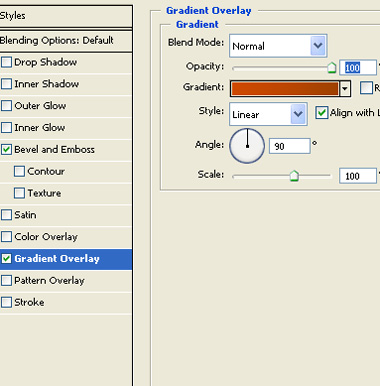
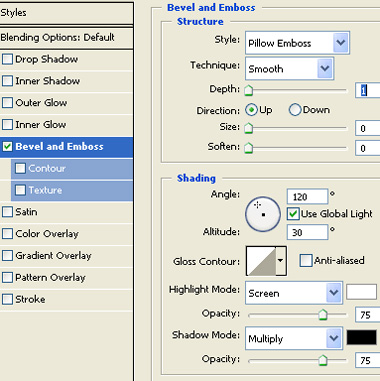
Double click the layer to open layer style window. Apply layer style with the settings shown.
Create a rounded rectangle using rounded rectangle shape tool.
Double click the layer to open layer style window. Apply layer style with the settings shown.
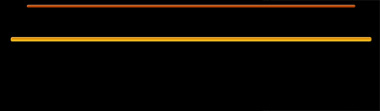
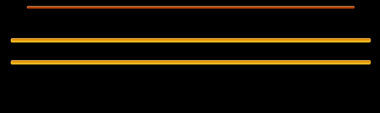
Duplicate layer. Move a few pixels below the original one.
Create another rounded rectangle using rounded rectangle shape tool.
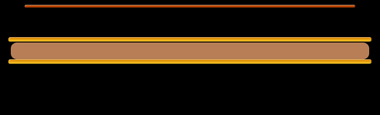
Double click the layer to open layer style window. Apply layer style with the settings shown.
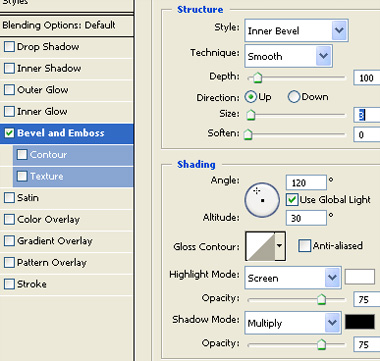
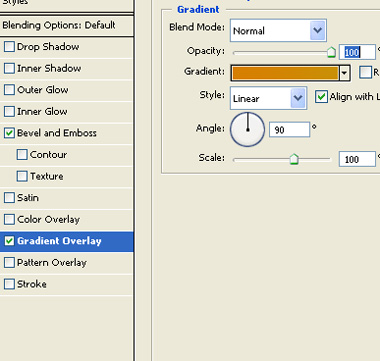
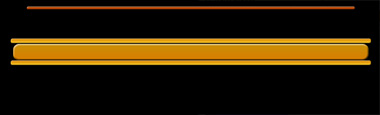
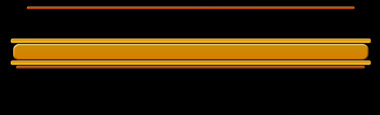
Duplicate the first rounded rectangle we created. Move it below all rectangles.
Create a rectangle using rectangular shape tool.
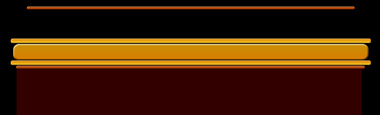
Create another rectangle using rectangular shape tool. Dock this rectangle to the left hand side.
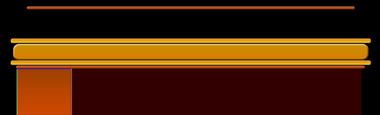
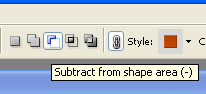
Enable subtract form shape area form the top bar.
Create an ellipse using elliptical shape tool.
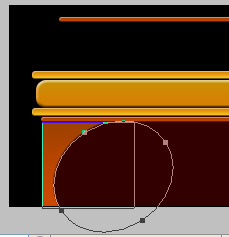
Apply similar layer style as use for the above shapes.
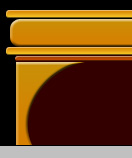
Duplicate layer. Offset a few pixels. Change layer style to the style we used for the first rounded rectangle.
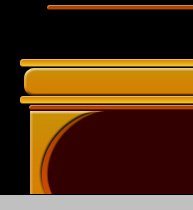
Duplicate, flip horizontal and place on the other side. Also create two vertical sticks and place as shown in the image.
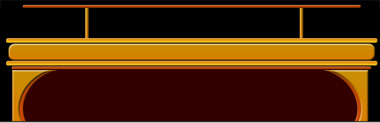
Create a hexagon shape using polygon shape tool and place for the buttons.
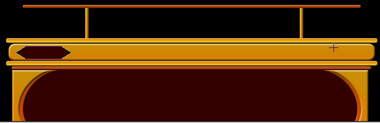
Double click the layer to open layer style window. Apply layer style with the settings shown.
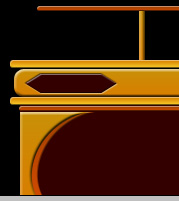
Duplicate and place for the additional buttons.
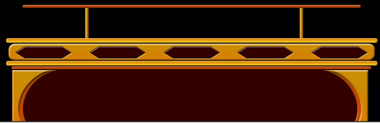
Create a diamond shape using custom shape tool.
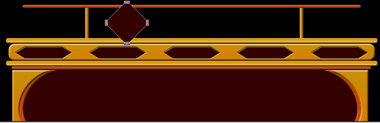
Select the shape using direct selection tool. Duplicate the shape and overlap as shown.
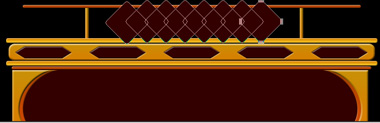
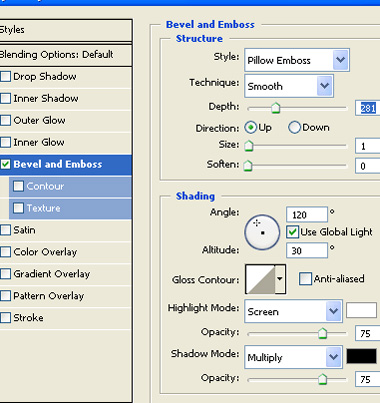
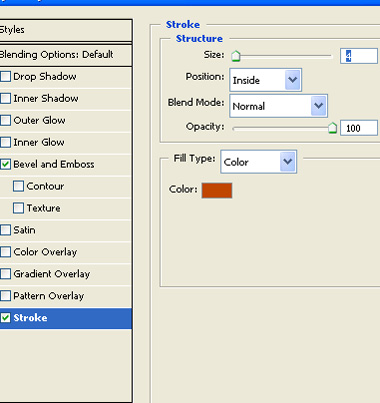
Double click the layer to open layer style window. Apply layer style with the settings shown.
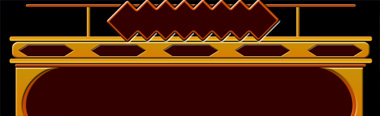
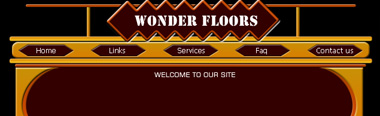
Type company name, button links and welcome message as shown in the image.