This is my first tutorial, so please give me some feedback. I'm writing about the "glass" text effect, to enhance your plain font. This tutorial is a little vague, because the result can change with a few minor tweeks. So, let's begin, shall we?
First create a blank document. I'm going to use 500 x 100.
Use the font tool to make some text, and set it at Arial Black 48 pt Strong.

1. Layer ->New->Layer.
2. Move the layer below the text.
3. Layer->Merge Down *Merge the top layer.
4. Use the Ellpitcal Marquee tool.
5. Select 1/3 of the font layer and cut.
6. In the new layer, set the opacity to 75%.
7. Merge the layers, again.
You should have something like this:

8. And set these settings :
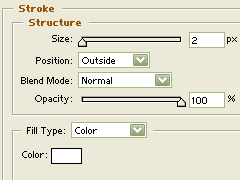
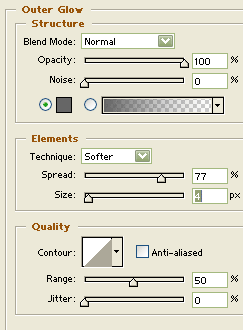
The darkish gray color is #666666.
Your result should look something like this:

Carpe diem people...
