1. New Document
First create a new document, size 250 x 250 and with a transparent background
2. Add text
Now create some text, for the newbies at photoshop, the text tool is the letter T

3. Duplicate text
Duplicate the text and move it down just a little underneath the first text. Then repeat.

4. Rotate text
Merge all the layers together (Link them and press CTRL+E) and then go into Transform mode by pressing CTRL+T, rotate it -45.0 degrees, that's to the left :)

5. Define as pattern
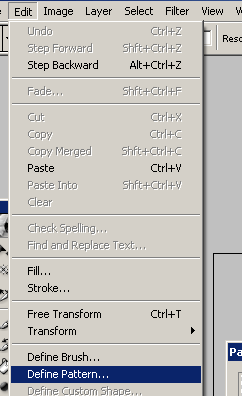
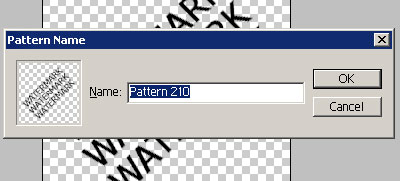
Center it now, then select everything (CTRL+A) then goto Edit > Define Pattern
6. Using it
Get a recent piece of work that you'd like to watermark and open either the psd or jpg, make a new layer and get the paint bucket tool

Near the top of photoshop there's the settings for the paint bucket tool, change the Fill type to Pattern and select the pattern

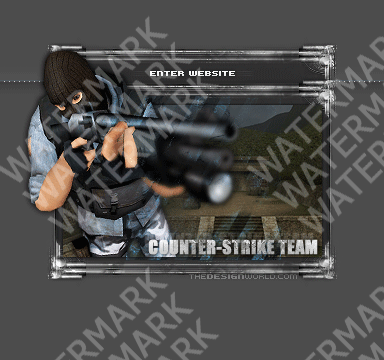
And change the Opacity to about 25% and click the canvas
You could also invert it to white (CTRL+I)
Variation: