1. Begin
Ok well start off by making a new document, I used 320x320 and filled the background with a light grey color #626262
2. Background
Now just use the dodge tool a bit to make a basic metallish background that the bullethole will fit nicely with
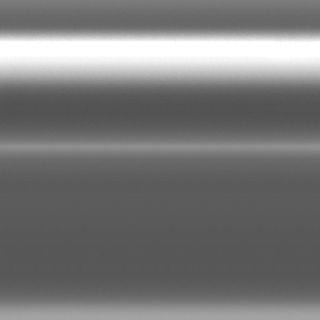
Alright now grunge it up a bit more with some brushes, im just using one grunge brush I made ages ago.
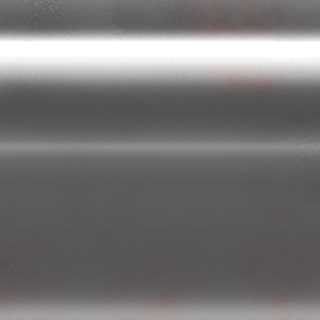
Remember, layer modes: Darken, Overlay and Soft Light are friends ;)
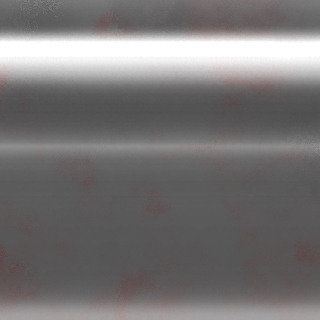
Now merge all the layers and darken the whole thing up a bit with the burn tool
3. Start the bullethole
This metal actually looks like crap, but let's go ahead and make the bullet holes anyway
Make a new layer and get the brush tool, get a small solid brush (14 px solid) reset the colors to black and white (D) and click twice on the canvas
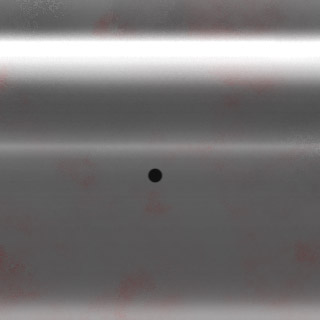
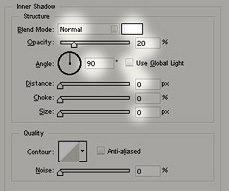
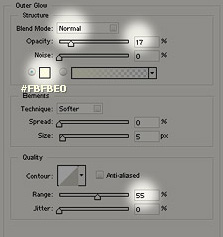
Go into the blending options for this layer and apply the following:
Inner Shadow
Outer Glow
4. Finishing the bullethole
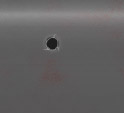
Zoom in like 300% on the bullet hole and make a new layer, using a 1px solid brush and brush around the edges of the bullet hole
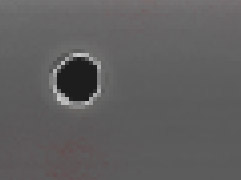
Set the layer opacity to 55%
Now make another new layer and make some rounded strokes clockwise
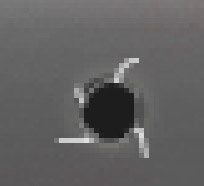
Erase the edges of those with a soft brush and set the layer opacity to 30%
5. Touches
Merge all the bullet hole layers together and brighten it up a little with the Dodge tool
Then apply Filter > Sharpen > Sharpen
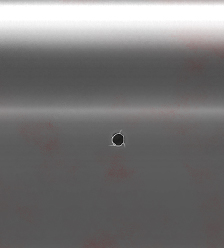
It actually looks a little crude now.. but i've made some quite nice bullet holes using this method before