

1. Begin
Well start off by making a new document size 450 x 450px with a resolution of 72.
Now fill the background with a very dark color - #111111
2. Make a rectangle
Make a new layer and make a wide short selection
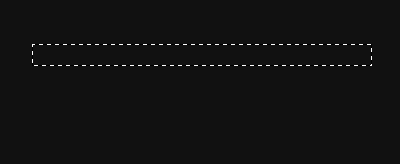
My selection is actually a set size of 340 x 22px.
Now since you've got a new layer and a new selection, fill it with #5E5E5E
3. Dodge tool
Well basically the only tool you need for making a chrome bar is the Dodge tool

So get the dodge tool and set these settings for it

4. Highlighting
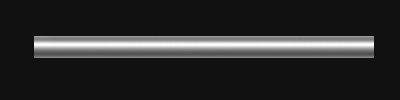
With the dodge tool, hold shift and go from the right side to the left, in the middle and at the top and bottom a bit
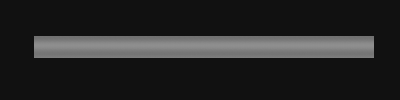
Now a bit more to highlight it some more
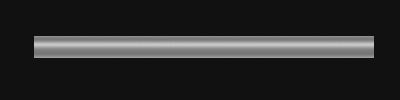
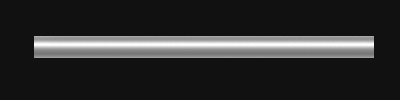
5. Burn tool
The Burn tool is used to darken areas realistic similar to the Dodge tool, get the Burn tool which is under the same section as the Dodge tool

Use similar settings to these:

6. Shading
With the Burn tool, burn a bit near the bottom and top, remember to hold shift then drag all the way over to the left to get straight, even strokes.
7. Rust
For rust just create a new layer over the bar layer, make sure the selection is still there (If it isn't, hold CTRL and click the thumbnail of the 'bar' layer,) and brush with brown and yellow, and set the layer mode to overlay.
Also other good methods for rust is Filter > Noise
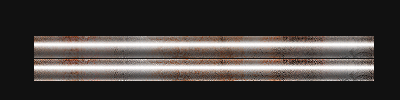
PSD is included so you can see how I did the rust.
