

1. Opening the document
Open a new document, size 500px x 90px.
2. First background step
Fill the document with two colours split as shown below:

3. Second background step
Now, fill the left hand side as shown in the image below:

4. Creating the borders
Create a new layer and using the pencil tool, make sure the setting for brush size is on 1 and pencil in the white lines as shown below:

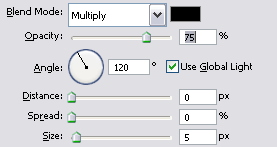
5. Add drop shadow to borders
Right click on the border layer and click 'Blending Options'. Add a drop shadow with these settings:
This is what your image should look like so far:

6. Adding the text
Almost done already! Now you just have to add the text. I used the font 'Danube', and this is my final result. After you have added the text, apply the same drop shadow that you used on the borders.

I think it looks pretty good for something done in about five minutes! Hope you like it :)
