


This is the finished product from this tutorial, a nice menu to use on your layouts.

I am going to show step by step how to do it. First, use the lasso tool (click L) and make a selection just like this one, fill it with any color. (alt+f)

Now, right click on this layer. Go to Blending options. Their, apply those styles to the button. The color for the gradient is #DCE5EE and #FFFFFF (white). For the Stroke is #778AAB
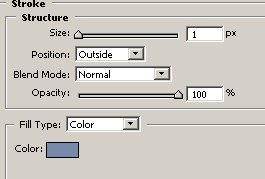
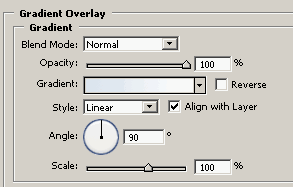
Your button is looking like this now:
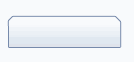
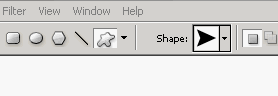
The base for this button is done! Now let's use the custom shape tool (press U) of the Photoshop to make this button more interesting. Chose a shape you like, I chose this one that comes with Photoshop CS.
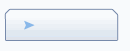
Create a new layer, make a path. Then ctrl+click on this layer to get the selection, create another layer and fill it with color, I used #89B8E9.
On the blending options of this arrow layer. Use:
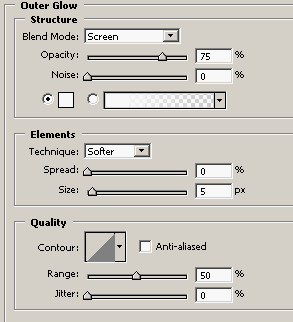
Also, make a 1px side centered stroke of color: #747A88
Now, lets add some text. I added a text using Blue Highway Font and color #747A88.

Now you can simply put all this layer on a folder, and duplicate it many times to make your menu.
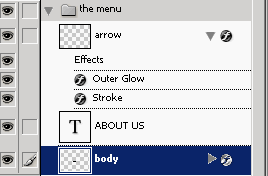
This is an example of it implemented to a design:
Looks pretty god, and it's very easy to make.
I hope you enjoyed the tutorial. Thanks.
