


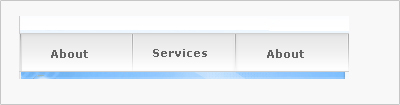
This is the finished menu. I am going to show step by step how to do it.
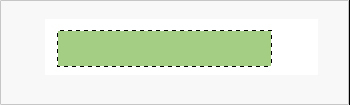
First, make a selection with the size you want the menu to have(although you can change the size later…) and fill it with any color you want (alt+backspace). Call this layer "menu back".
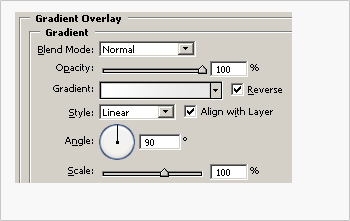
Then, right-click on the layer and go to Blending Options. Active the "Gradient Overlay" part and make a gradient with the settings showed on the picture. The important is to be Linear and with 90 degrees angle. For the left color use #E7E7E7 and for the right #FFFFF
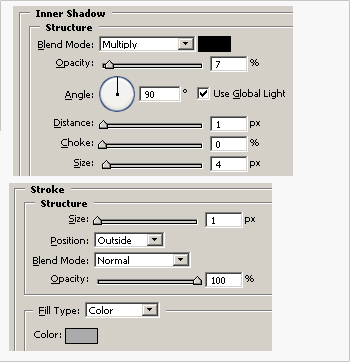
Now active the "inner shadow" part. Adjust the things to be like in the picture. The color is #000000 (Black). Also, active the "stroke" part and adjust like the picture. The color is: "#ABABAB" I suggest you to play around with the colors, size of stuff, it's fun and you can find variations to your menu be more in your taste. :)
Your menu is looking like the picture now.

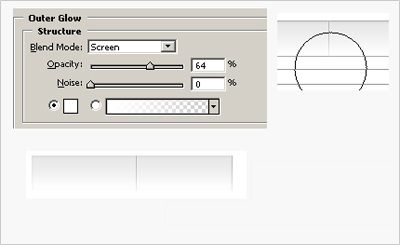
We are going to make the "divisations" now. Make a selection and fill with any color, like showed on the picture.

Click with the right button on this layer, go to Blending options. On the "Outer Glow" settings put an outer glow just like it is in the picture. Next, select the "eraser" tool. Configure it to be a large and soft brush (100px is ok) and then erase the bottom part of the "divisation" a bit. Duplicate the "divisation" layer and put it on the right part of the menu. Move the first divisation to a position you find that is good. Now go to the "menuback" layer again and on the blending options turn the "stroke off". Your menu is looking now like the picture.
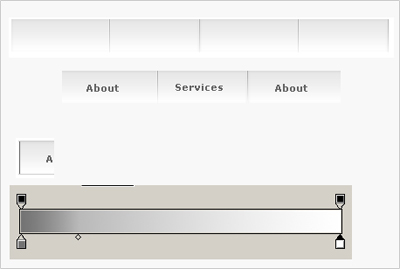
Now you can simply duplicate the menu how many times you want to accomodate more links, in the picture, I duplicated it once. Feel free now to add some texts to the menu. In the picture I used font Verdana, 11 pt, bold and color #646464 To finish we have to add an end to the menu in the left. So, make a one pixel selection and fill it with any color, just like in the other steps. Go to the Gradient Overlay, make it Linear, 90 degrees and in the colors make something like the picture. The left color is #737373 and the Left is #FFFFFF (White) Now on the "Stroke" part of this layer Blending Options, make a stroke with 1 px, on the center and with color: #CFCFCF.

Your menu is finished, and looking like this now. The menu looks simple, but it's very beautiful and take some time to do, as you saw. This is a picture of it implemented into a design, looks very nice. :)
