


This is the finished product from this tutorial, a nice effect to use on your designs.
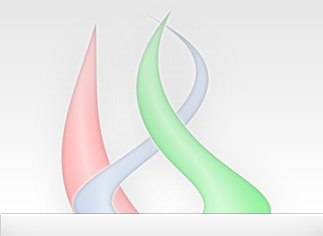
I am going to show step by step how to do it.
First, create a new layer, call it "effect", make a selection and fill with color: #97A8C0
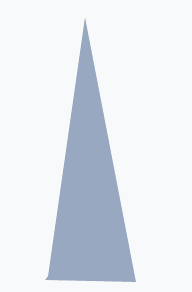
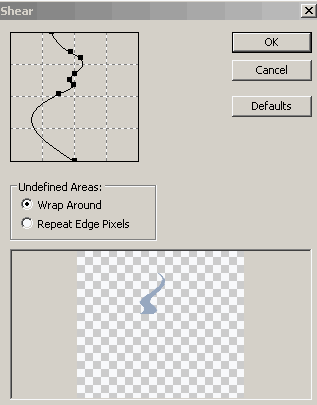
Go to Filter > Distort > Shear. And "shear" the image as it is in the above picture. Distort it in a way you like.

In my distortion, it looked like the above picture.
Now let's add some style. Right click of the mouse on the "Effect" layer and chose blending options. Add these styles:
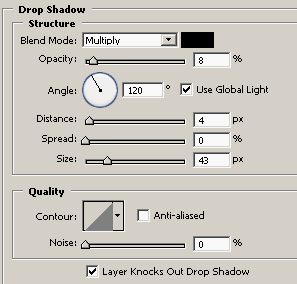
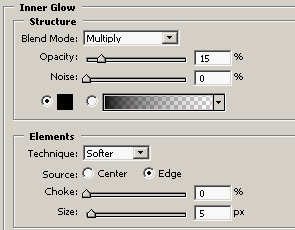
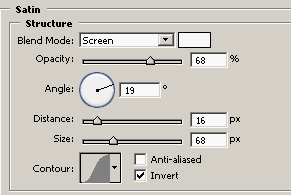
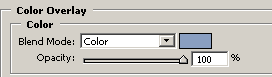
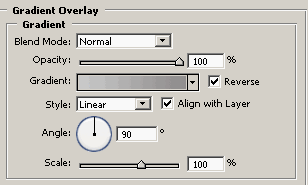
The color for the color overlay is: #8A9FC1
The colors for the gradient are: #918E8E and #CBCBCB
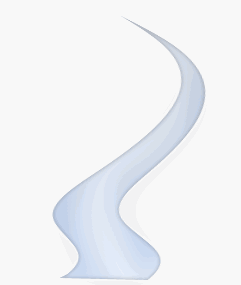
Your image is done! Now you can use this steps to create a lot of them and play around with the overlay color.
An example:
I hope that you enjoyed the tutorial. Thanks.
