

Hi, This is the finished product from this tutorial, a Christmas' tree ball!

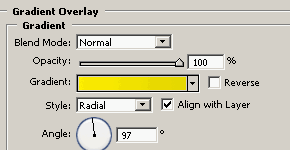
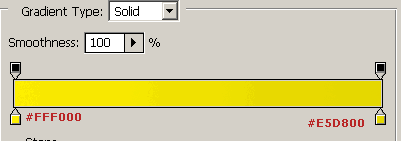
I am going to show step by step how to do it. Make a selection with the Elliptical Marquee Tool (M) and fill it with any color. Go to Blending Options (right click on the layer) And add a gradient overlay using the settings:
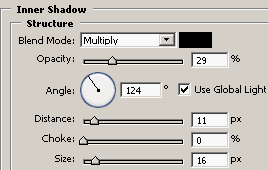
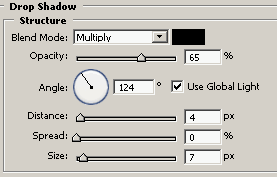
Then add a Inner Shadow and a Drop Shadow using the settings:
Now create another circle, like the picture, fill it with white. Click on the Vector Mask button (bottom of the layers tab). Now ctrl+click your layer (that has a mask in it) and use the gradient layer(black and white). Your image will look like the following.
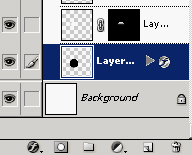
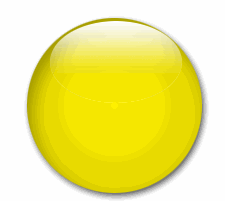
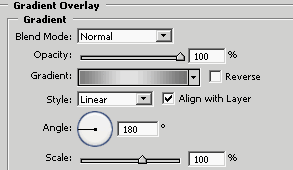
Almost done, with the rectangular marquee tool (M) make a selection and fill it with any color and on the blending options use a gradient like the picture. You can also add a stroke and dropshadow on your taste.
Now make a circular selection and fill it with gray. Erase the bottom part. You are done!
I hope that you enjoyed this tutorial.
