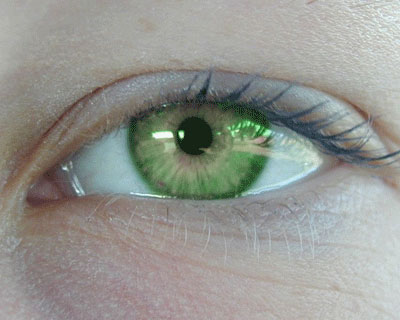
In this document we will learn how to change the color of the eye in this image.
This tutorial is aimed at beginners but will hopefully help a lot more user's.
Step one.Open up the image in PhotoShop. You will see that we have a background
image in the layers pallet click on this once and drag it over to
 so that it copy's the layer. This just makes sure that if you make a
mistake instead of having to reopen the image again you can just delete
the layer.
so that it copy's the layer. This just makes sure that if you make a
mistake instead of having to reopen the image again you can just delete
the layer.
You should see this in the layers pallet now.
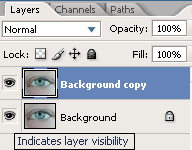
Step two. Grab your elliptical marquee tool
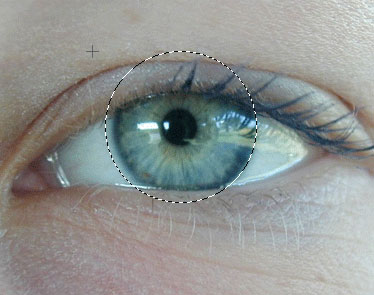
 and go to the center of the eye. Hold down Shift+Alt and drag the selection to about the same size as the whole iris.
You should have
and go to the center of the eye. Hold down Shift+Alt and drag the selection to about the same size as the whole iris.
You should have
Step three. We are now going to add a layer mask to this click the add layer mask on the layers pallet
 .
.
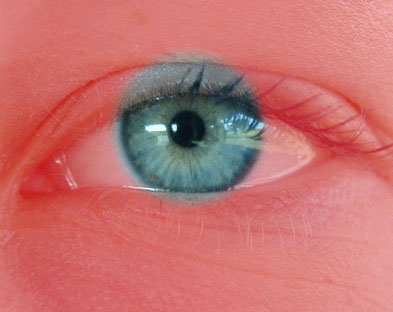
Now click on the black box what has just been added and press (slash) and you should see that the background has gone red.
Now on the main menu go to Filter>Blur>Gaussian Blur. A new box will pop now. Add the settings in the bar to 4.5. (this will blur the layer mask) And click ok. You should now have this image.
Step four. Click on the brush
 and make sure black is your foreground color and brush out the parts of
the iris that we missed with the selection. If we have not added parts
of the iris press x and bring the white to the foreground and now we
can brush the parts that we did not add.
When finished we will have something what looks like:
and make sure black is your foreground color and brush out the parts of
the iris that we missed with the selection. If we have not added parts
of the iris press x and bring the white to the foreground and now we
can brush the parts that we did not add.
When finished we will have something what looks like:
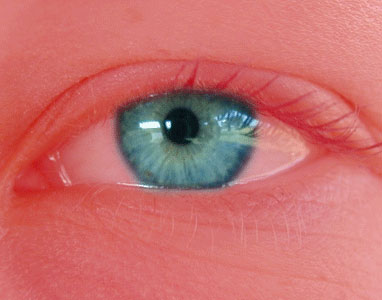
Step Five. Get out of the layer mask by pressing (slash). Now hold down Alt and click on the adjustment layer
 and click on Hue and saturation. Note This part is important. A new add
layer box will appear. Make sure that you click the boz that says "use
previous layer for clipping mask" i have also added a image for you if
you can not see.
and click on Hue and saturation. Note This part is important. A new add
layer box will appear. Make sure that you click the boz that says "use
previous layer for clipping mask" i have also added a image for you if
you can not see.
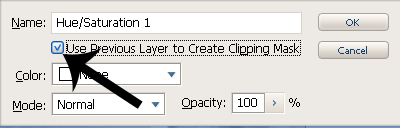 .
.
And now click ok.
Step Five. After we have clicked on ok i will bring Hue and Saturation box up. This depends on the color that you want your eye to be. I want the eye to be a slight green. I move the Hue slider to what i want. If you want to look at the settings I used:
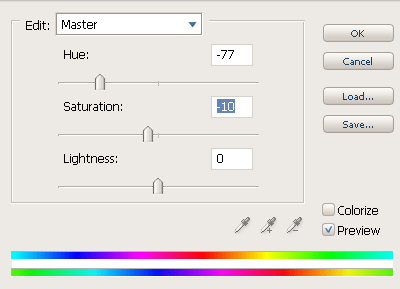 .
.
Now that is it. Was not as hard as you expected was it? Only thing left to show you (apart from final image is my layers.
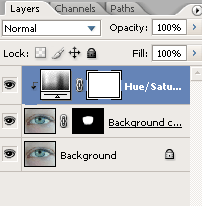
Here is my final image. Please leave feedback as always.
Hover over to see "before" image.