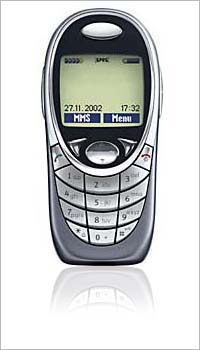
Open a new picture. Make sure you have a lot of background in the bottom of the picture.
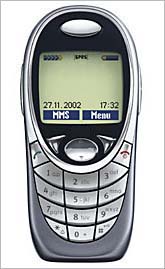
Grab Rectangular Marquee Tool and select the bottom of the mobile.
Copy the selection (ctrl + c) and paste it right after (ctrl + v). Then you have two layers.
Activate the new layer and go to Edit > Transform > Rotate 180° and then Edit > Transform > Flip Horizontal. Pick Brush Tool and set Mode=Clear. Cut out the background of the duplicated layer.
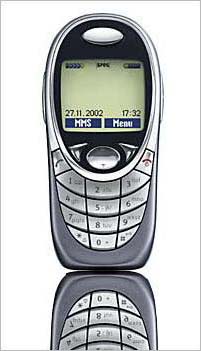
Select a rectangle in the bottom of the copied layer and go to Select > Feather, set radius to 15 px. Then the selection will look like this.
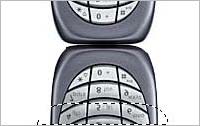
Hit Delete on the keyboard a couple of times.
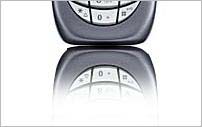
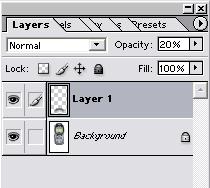
Then we are almost done. Go to Layers-palette and set Opacity to 20%.
You are finish.