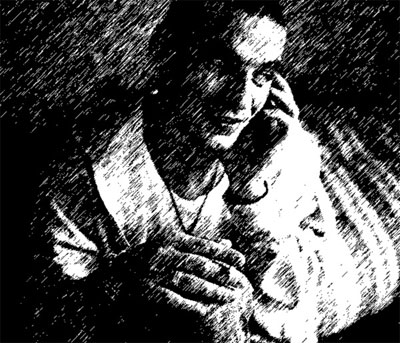
To start off, choose an image or photo you want to turn into a sketch. This is the one I selected, if you want to follow this tutorial, then you can download the picture i used here.
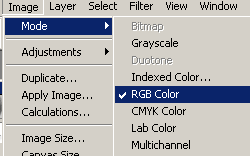
First thing is to make sure that your image is in RGB mode, if its not, then you can convert it into RGB by going to: Image->Mode->RGB Color

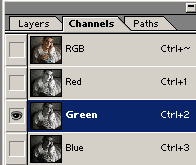
Now switch over to your CHANNELS palette, if you cant find it, go to Windows->Channels
Now just select the GREEN channel:

Now go to Filter->Sketch->Graphic Pen
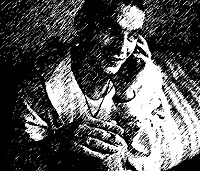
Now just adjust your stroke length and light/dark balance. Generally, we put the stroke to the higher end, around 13 or 14. and the Light Dark Balance around 70 - 80. You just adjust yours according to your image, different settings works better on different image.
Now go to SELECT->All
Then Edit->Copy
Then File->New (just use the default settings because the size are already set from the clipboard)
Then go to Edit->Paste
Essentially what we are doing here is copy the sketched channel from the other image to a new one so we keep the sketched image.
No apply some gaussian blur, Filter->Blur->Gaussian Blur
Set the radius to about 0.3 or 0.4