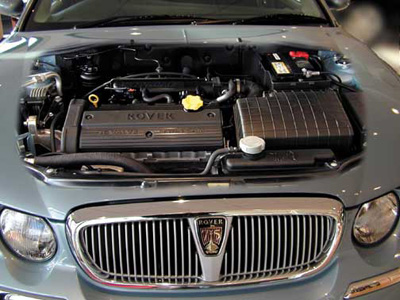
Looking to create a new image why not try blending two images together using the Paste Into tool.
First select the two images that we wish to use, the main image plus the background image or second image. Name the images so you don't get confused between the two.

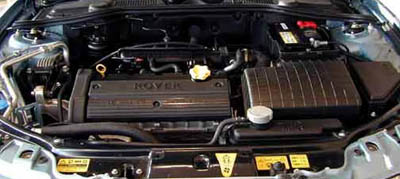
With our main image open in Photoshop we select the freehand Lasso tool from the tool bar - short cut L.
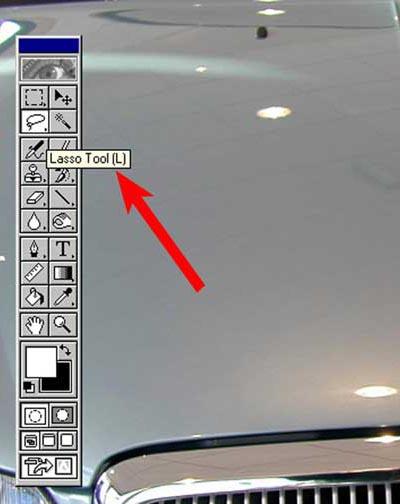
Now draw around your main image where you want to place the second image, it doesn't have to be particularly accurate but if for your image you need to draw straight lines you could select the Polygonal Lasso or you can draw straight lines with the Freehand Lasso by using Alt + click.
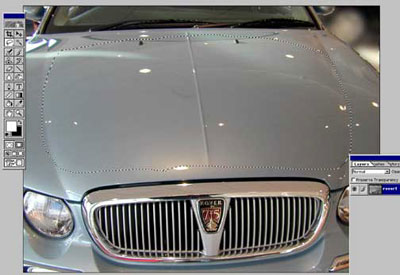
Once you have selected the area we now need to feather the edges. Select > Feather and choose a radius of around 10 pixels.
We can now open our second image and choose Select > All this puts the 'marching ants' around your entire image. Now copy this image by going to Edit > Copy, once we have done this we can close the second image leaving just our main image open. If you go to Edit > Paste Into our second image appears in the area we have selected with the lasso. It may not be quite the right position but we can now adjust this by going to Edit > Free Transform or try using the short cut Ctrl T this will put an eight handled frame around the image - you can then use the handles and move the second image into position. Once you are satisfied with the positioning of your second image, double click inside the frame or hit the enter key to apply the changes.
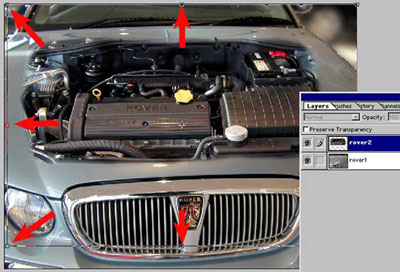
You are now left with your two images combined to form one new image, but when you selected Paste Into, Photoshop added the second image as a new layer so we finally need to flatten our image to finish off. Layer > Flatten layer or click on the corner of the layers pallet and select Flatten Image from the options.
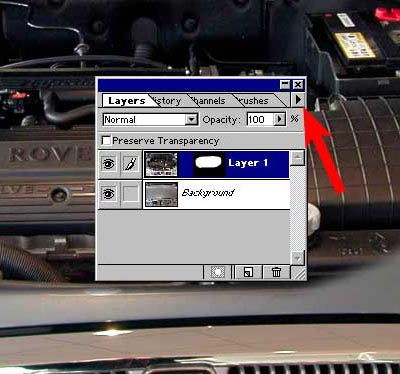
You are now left with your two images combined to form one new image, but when we used the Paste Into command, Photoshop added the second image as a new layer so we finally need to flatten our image to finish off. Layer > Flatten Layer or click on the corner of the Layers pallet and select Flatten Image from the options and save your new image. The Paste Into command can be used on a variety of images such as replacing flat skies, so why not try experimenting with this useful Photoshop tool.