


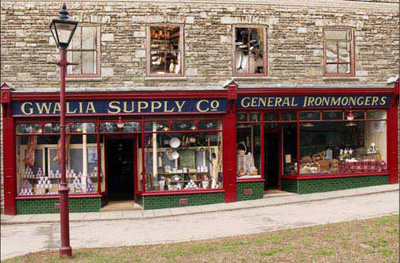
Any finishing touches we add to our image can be as important as the images themselves. This image would look great with a vignette but let's make the vignette a little bit different as well
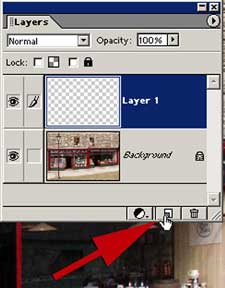
On the Layers palette click on the new layer icon on the layers palette to create a new empty layer above our background layer or finished image.
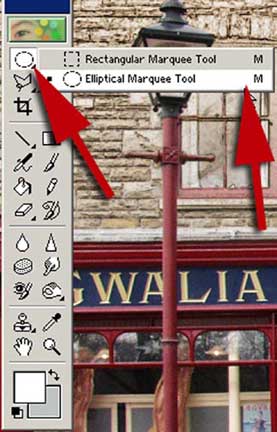
From the tool box select the Rectangular Marquee Tool, short cut M.
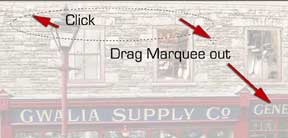
Click and drag the Marquee out over the image until you have completed your vignette
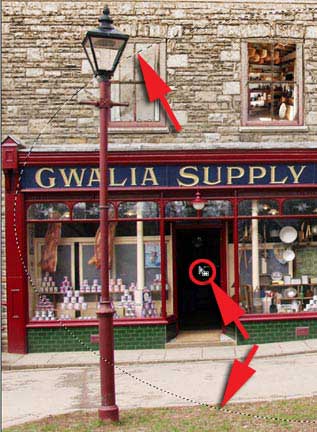
Moving your cursor inside the vignette it changes to a small square with a flag. By clicking you can drag the vignette to adjust its final position.
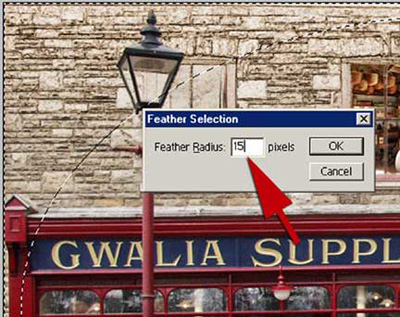
We now need to Inverse our selection choosing Select > Inverse or short cut Shift Ctrl I. We now have two lines of marching ants around our image. To soften the edge of our vignette we choose Select > Feather from the menu bar setting the radius to around 15. This may vary depending on the file size so try experimenting.
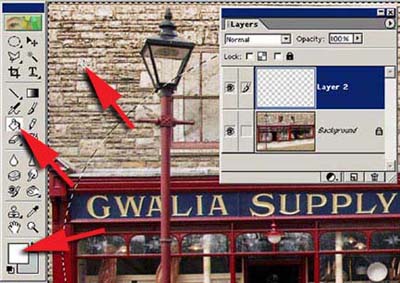
Set our foreground colour to White in the Tool box and call up the Paint Bucket. Click inside the line of marching ants with the Paint Bucket and this will fill the area with white. Press Ctrl D to remove the marching ants and our vignette is almost complete.
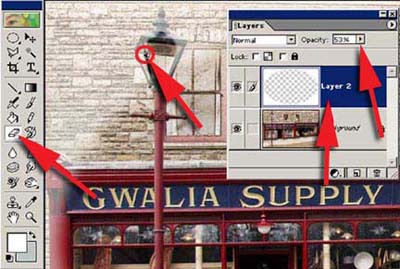
To remove part of the vignette allowing the lamp to come through we first need to reduce to opacity on the vignette layer to around 50%. We can now call up the Eraser tool from the tool box and start removing the vignette to expose the lamp.
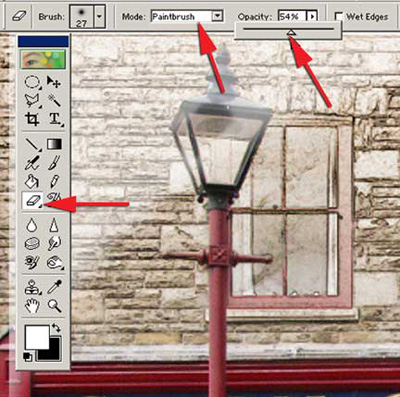
Try using the zoom tool or pressing Ctrl + Spacebar to enlarge the image so that you can clearly see what you are removing. When you are removing the vignette close to the edge reduce the opacity of the eraser down to around 50%, and slowly build up the amount you wish to remove. This will give a much more accurate edge to the lamp.

The finished image.
