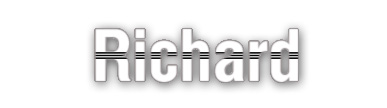
1. Open photoshop and create a nice sized document for your text make sure when you add your text that's its not small.

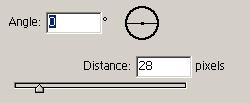
2. Now were going to start to work on the effects you need to Blur the text layer to do this you will need to goto Filet - Blur - Motion Blur to give it that Blurred Look of course my Blurred settings are shown below.
3. Now on your text layer and select the blending options by going to Layer - Layer Style - Blending Options all Setting Below.
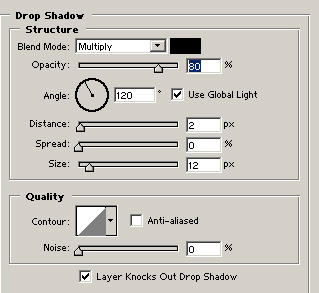
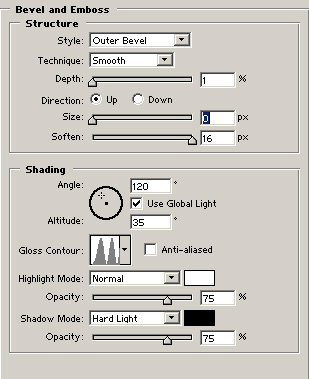
4. After adding the Drop Shadow Effect to your text you can start to see the starting period of this text effect now lets add the Bevel Emboss
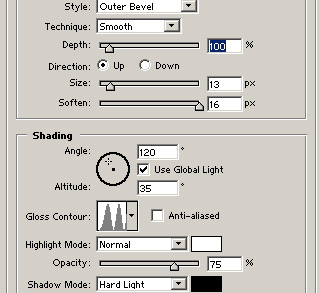
5. Now your starting to see near to the end result but we have one last setting to add as shown below.
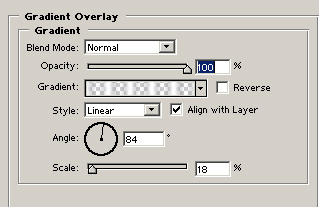
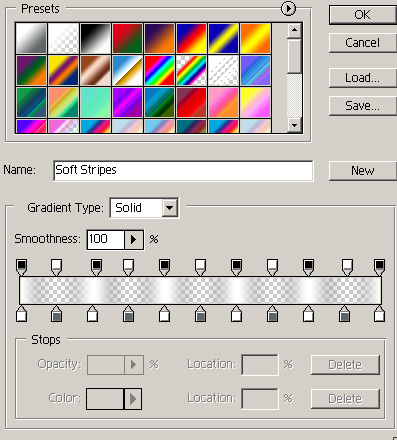
And now you might want to no how to make this gradient then look below
6. Now for the final step we are going to add a stroke as shown below and the color code
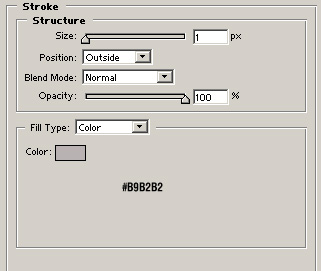
If you cant read the color code here it is #B9B2B2
Final Result.
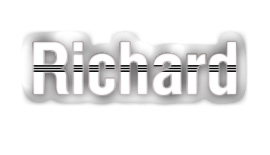
This Text effect is quite attractive you can also change the colors to make it suit your taste and maybe design.
7. This is a added Extra. This will be instead of some of the Bevel And Emboss Settings
This will give you a new finished result this we depend on which one you like.