1. Open the image in adobe photoshop and add text to the image as shown below.

2. Now Right click and goto Blending options and the settings for this part are shown below.
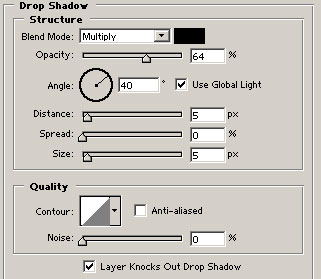
This will change the shadow depth and the structure
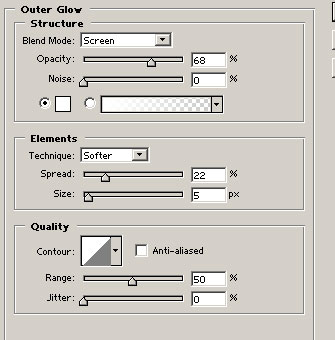
This will give it a extra but of light from the outside with some softer elements
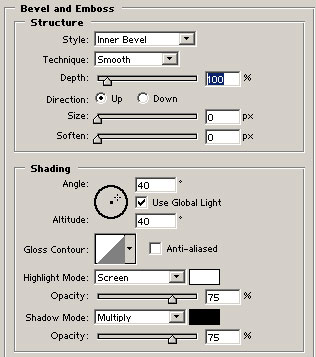
3. Now goto the options bar as shown below and change the fill to 1%

4. Now your done the final image has bean shown below.