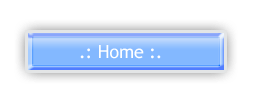
First of all click on the Rectangle Tool
 ,and draw on a rectangle

Now we need to add a Shadow, So click on Layer / Layer Style / Drop Shadow
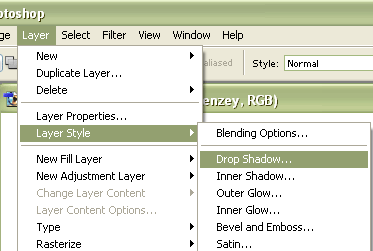
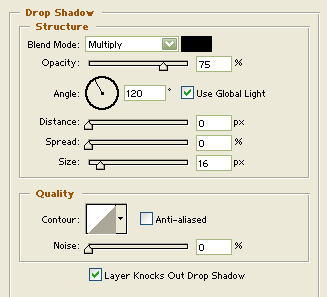
Change the options of the Drop Shadow to
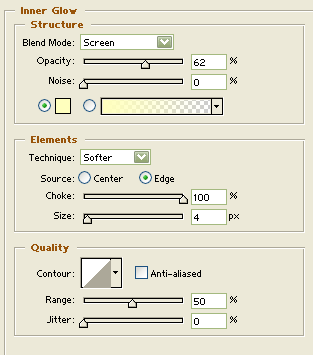
When Drop Shadow is finished, Click on the Inner Glow, with these options
After adding the Inner Glow add a Bevel now, to add a bevel Select the Bevel and Emboss, And click on the Contour
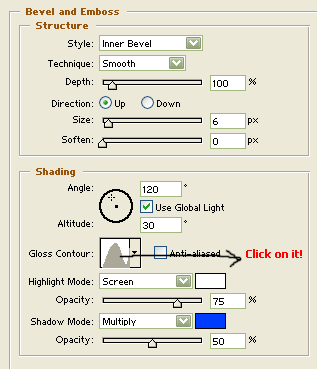
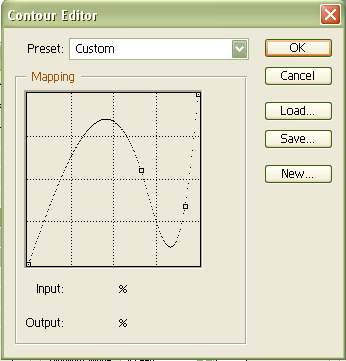
When you click on the Contour, change the line, Like how i changed
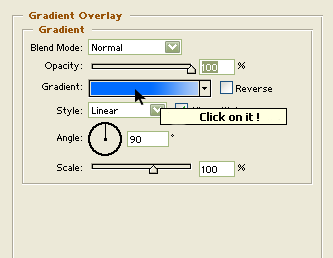
To Add a Color Select the Gradient Overlay and Click on the gradient
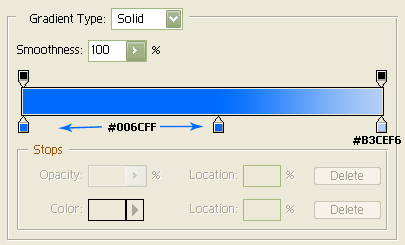
And add these colors
The Color is Done now, So lets add a Stroke at last
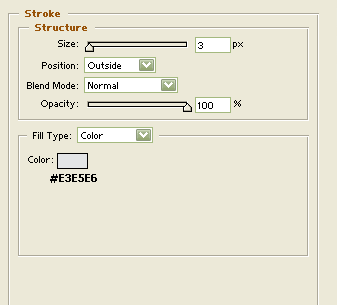
When the Stroke is done Click on the OK button, Now add some text in its center, and the Crystal Button is Finished!