Create a new image or open one ready to apply text. Type in your text in your desired font and size. Once you are happy with it right click the text layer and select Blending Options from the menu. Set the Blend Mode to Soft Light, then:
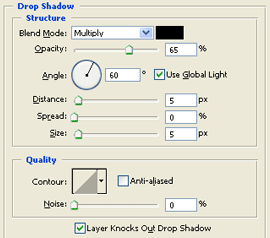
Click Drop Shadow and enter the settings above.
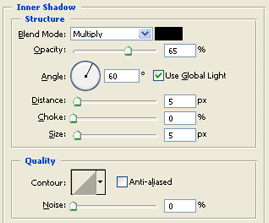
The same for Inner Shadow.
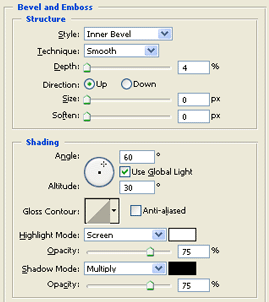
Select Bevel and Emboss, enter the settings above.
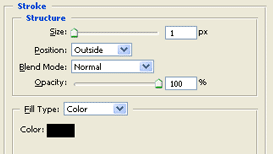
Click Stroke and set it to 1px.
You should finish with something like this. Then you can add it to a sig or avatar, or just an image you like.