Start with 2 images. Use your own or copy these.

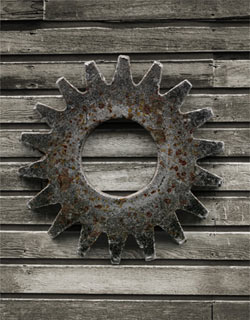
1. You know the drill by now, make a new document and drag and drop both images into the document. Create a new layer for the back ground and fill with white. (I know its black on the pix, but I changed my mind later)
Select the top layer (by clicking on its name in the layers palette)
Click the add layer mask icon
 in the layers palette to add a mask to the hands layer.
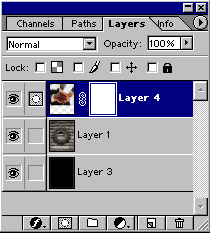

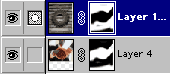
2. Make sure the mask is selected, you can tell because the icon will show a square with a circle in it. (See illustration) (CS USERS: They removed this icon on CS2 The top of the status bar will say mask)

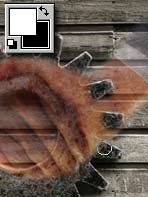
Making black as your foreground color, choose the brush tool and a large soft brush.

3. As you begin to paint, notice how the top image disappears as you paint it out. On a layer mask, whatever is painted black is made invisible. Whatever is white is visible.
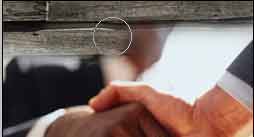
4. Once we have painted out all the parts we want hidden, you may notice some areas where you over painted. Don't worry.

5. Press the "X" Key to switch the foreground and background colors.
With white as the foreground, choose a smaller brush and paint back the areas you want to keep. Notice as you paint with white, the
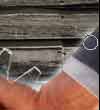
image comes back. Don't you love layer masks!
6. Now are you ready to take the next step? Duplicate layer 1 (The cog), by selecting the layer and layer>duplicate or by simply dragging the layer name to the new layers icon.
Drag the new layer to the top of the layers palette as seen in the picture.
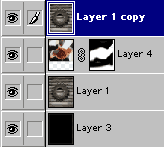
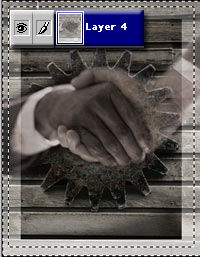
Keeping the top layer selected, Ctrl/Cmd+click on the layer 4 thumbnail

(The tiny picture of the hands in the layers palette)
7.
A) You should see the "marching ants" selection like this
B) Click add layer mask
and the selection will automatically fill the mask. Click the mask thumbnail to select the Layer Mask.

C) Invert the mask by pressing Ctrl/Cmd+I or image>invert. You will now see the hands again.

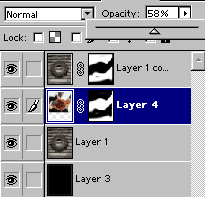
8. We are going to paint back some of the cog. But to see it clearly we will lower the opacity of the hands layer (layer 4) Select the layer and slide the opacity to 58%.
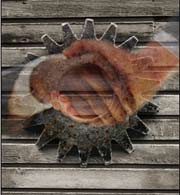
7. Select the top layer again. Just like before, with the layer mask active and a white brush, paint the edges of the cog to make then visible.
It will help to use a smaller hard brush for the detail in the teeth of the cog. Use a large soft brush going into the hands for a smoother transition.
8. Put the opacity at 100% again on layer 4 (the hands layer) There we have an interesting blend of images.
Are you ready to take it even further? Lets go...

9. Go to hue/Saturation and colorize the hands with a warm color and very little color saturation, 30% at most.
Pull back the opacity on all the layers to 70 - 80%
Click on the "hands layer" thumbnail to select it. then directly to the left of the other thumbnails, click the box and see the little "chain" icon appear. This means the layers are linked. Link the 3 layers together, do not link the color background layer. Go to Layers>Merge linked.(CS2 Users: Hold Down Cmd/Ctrl and click each layer to select it. Choose Merge Layers From The Palette Options Menu)
You now have only 2 layers. The composite layer with our art and the white background layer, let's do something cool and fun...
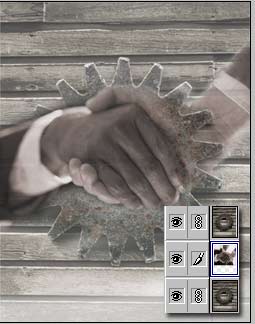
10. Select the white layer "layer 3"
With the rectangular marquee tool "M" draw a smaller rectangle inside the picture frame and fill with black. Should look like at the left.
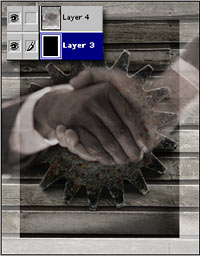
11. Select the top layer and make another rectangle larger than the last one
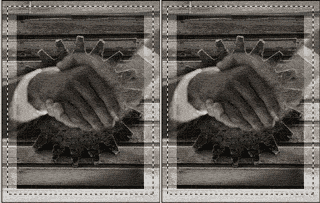
Invert the selection by pressing Ctrl+Shift+I or Mac Cmd+Shift+I
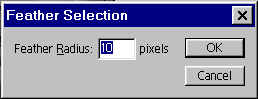
Select>feather input about a 10 pixel feather
12. Press delete 3 times and this is what we have.

13. To finish off I have added some type in Screen mode.

I sure hope you enjoyed this tutorial and have learned something about collages.

