1. Start with your button image. Create it in Photoshop.

2. Now create a new layer, how you want the button to look when the mouse rolls over it. (You can do it easily by using layer styles)

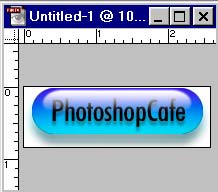
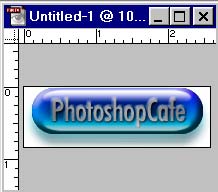
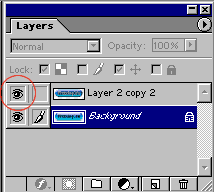
3. See how the rollover will look before and after simply by turning on and off the top layer in Photoshop.
We now have the images ready. Time to make then into rollovers in ImageReady.
The image on the background with layer 2 hidden.
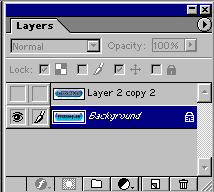
The image on the background with layer 2 visible.
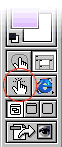
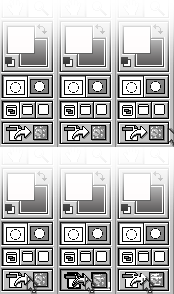
4. Switch to ImageReady, by simply clicking on the button at the bottom of the tools palette. ImageReady will launch with your layers intact.
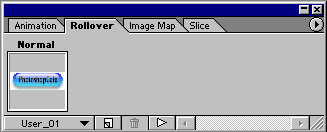
5. Go to the rollover palette. ( Now called the appearance palette in Photoshop CS and newer) Make sure the top layer is hidden and your "Normal State" (How it looks before the mouse touches it) will be set.
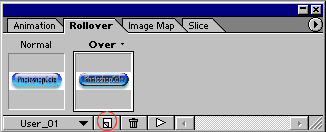
6. Click on the new state button and the "over state" is created. This is will appear on the webpage when the mouse moves over the image. Change its appearance by making the top layer visible. Each state will reflect what is visible in the layers palette.
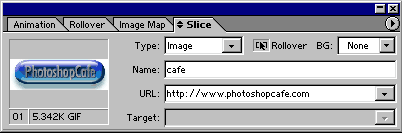
7. Now click on the slice tab and assign a URL to your rollover. A URL is where you want the link to take you. If it's a different site then use a http:// address. If you are going to a different html page on the same website then make sure to use a .htm extension.
8. You can test your rollover by clicking the test button on the tool palette.
When you are happy with the rollover effect: File>Save Optimized, give your page a name and Imageready will do all the work for you including creating the html page. Copy the html document and the new folder containing the images to your web server and you are now in business.