


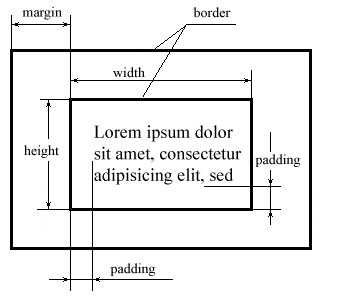
In CSS there exists the concept of block element mark (<P>, <DIV>). Block elements allow you to work with text within the boundary of a rectangle, where the text is located. Using this, text block becomes an element of page design almost with the same properties as a picture or a table.
Consequently, text block has the following properties list:
- height and width
- margin
- padding
- border
We may represent these properties in the following manner:
1. Height and width
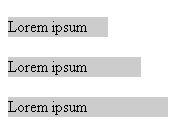
The height and width of blocks may be given in pixels (px), in typographical points (pt), in percent (%) or in the relative units (em).
You have got to be careful with the height of the block because in some browsers (for example the fourth version of Netscape Navigator) most of the CSS attributes (for example height) are not supported.
Height and width don't include thickness of the border around the element, paddings and margins.
I'll give you a few examples here:
| <div style="background-color:#0099FF; width:100px ">Lorem ipsum</div> <br /> <div style="background-color:#0099FF; width:100pt ">Lorem ipsum</div> <br /> <div style="background-color:#0099FF; width:10em ">Lorem ipsum</div> |
2. Margin
Adjust the size of the margin from each edge of the element up to the inner border of his parent element. If the parent element is absent, then the margin point is going to be located from the distance of the element edge up to the edge of the window browser. However you need to take into consideration the preset margins that are in the window browser. To get rid of them, you need to set the body tag margins equal to 0.
You can set margins in pixels (px), percents (pt) or in any other units available to CSS. The margin could be set to positive or negative state. By setting attribute to auto, the browser will set the size of the margin automatically.
You may set the same size to all sides using the margin:
| <p style="margin:50px ">Lorem ipsum dolor sit amet</p> |
or you may set different sizes to each side using the margin-top, margin-right, margin-bottom, margin-left parameters:
| <p style="margin-top:5px; margin-right:20px; margin-bottom:10px; margin-left:15px">Lorem ipsum dolor sit amet</p> |
or can you do the same with the use of this code:
| <p style="margin:5 20 10 15">Lorem ipsum dolor sit amet</p> |
Click here to see the result.
3. Padding
This attribute sets the margin around the contents of the element. In this case, the margin appears to be the distance from the inner edge of the element frame up to the outer edge of the imaginary rectangle which is limiting its contents.
You may set the padding values in any units available to CSS.
You can set the same padding for all the sides of the block:
| <p style=" padding:40px"> Lorem ipsum dolor sit amet</p> |
or set the padding values separately for each side (padding-top, padding-bottom, padding-left, padding-right):
| <p style="padding-top:20px; padding-right:80px; padding-bottom:50px; padding-left:30px;">Lorem ipsum dolor sit amet</p> |
or in this way:
| <p style="padding:20 80 50 30 ">Lorem ipsum dolor sit amet</p> |
By setting the mean to auto, the size of padding is going to be automatically set by the browser.
Click here to see the result.
4. Border
This property allows you to set the width, color and style of the frame, which is going to be around the block.
- Color - sets the color of the frame (the mean of this parameter could appear in the name of the color (green, silver, black, etc.), it's equivalent in hexi-decimal code (#00FF00, #CCCCCC, #000000 etc.) or with the help of RGB code RGB(255,200,100))
- Border-width - sets the width of the frame (you can set the width in pixels or in other units. There are also three different variables - thin (2px), medium (4px) and thick (6px))
- Border-style could appear in 8 variants:
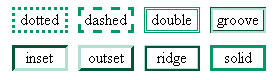
By conforming all these parameters that are listed above, you can be set the whole frame up on one side only with the help of the tags: border-left, border-right, border-top and border-bottom.
