First, create a new image and fill the background with the color that you like.
Use Marquee tool (M) to draw a shape that you want your navigation bar to look like, fill it with black color.
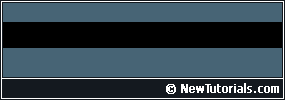
Right click on the navigation bar layer and select Blending Options. (or go: Layer >> Layer Style >> Blending Options )
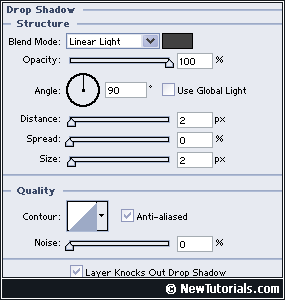
Layer Style window will open, click on Drop Shadow and use settings that you see on the screenshot.
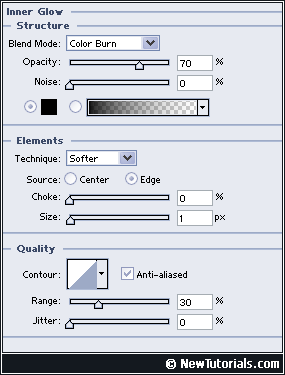
In the Layer Style window select Inner Glow on the left and use settings that you see on the screenshot.
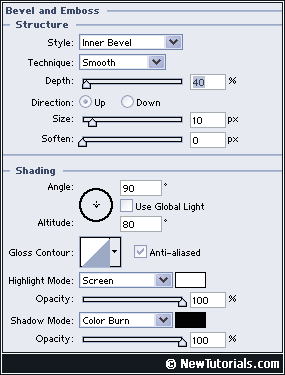
In the Layer Style window select Bevel and Emboss on the left and use settings that you see on the screenshot.
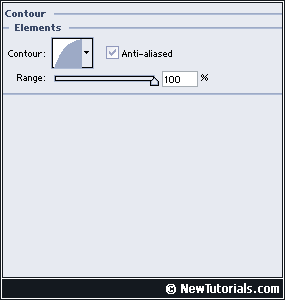
In the Layer Style window select Contour on the left and use settings that you see on the screenshot.
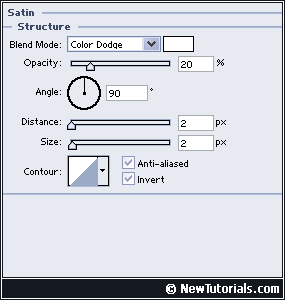
In the Layer Style window select Satin on the left and use settings that you see on the screenshot.
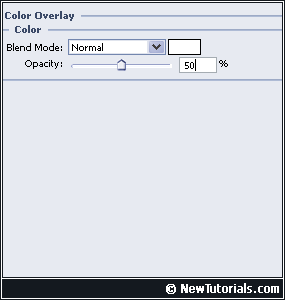
In the Layer Style window select Color Overlay and use settings that you see on the screenshot.
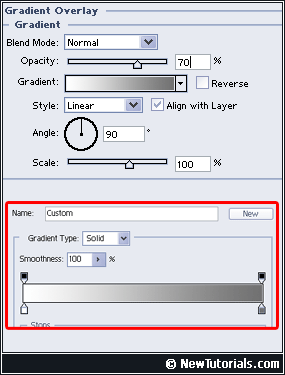
In the Layer Style window select Gradient Overlay and use settings that you see on the screenshot.
Press ok when you done and your image should look like mine. The only thing you need is to add text.
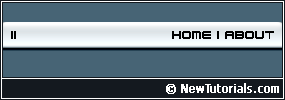
Congratulations, you now know how to create Navigation Bar in Photoshop.
